GPT Image 2.5 API is live. Create and edit images →
PoYoPoYo
Market
Pricing
Enterprise
Ctrl+K
poyo.ai

One API. Every model.

Built for developers

All systems operational

Resources

  • Alternative Hub
  • Comparison Hub
  • Blog
  • Providers
  • Affiliate Program
  • Features
  • Sitemap

© 2025 PoYo API. All rights reserved.

Popular Modelshot

  • Seedance 2.5
  • MiniMax H3 / Hailuo 03
  • FLUX 3
  • Nano Banana Pro
  • Seedance 2
  • GPT Image 2

New Releasesnew

  • DeepSeek V4.1 Flash
  • GPT Image 2.5
  • GPT-6 Astra
  • Claude Fable 5.1
  • Gemini 3.8 Flash
  • Gemini Omni 1.1 Flash

Coming Soonsoon

  • Wan Animate 2

All Providers

Google

  • Nano Banana Pro
  • Gemini Omni 1.1 Flash
  • Gemini 3.7 Flash
  • Gemini 3.8 Flash
  • Gemini 3.1 Flash TTS
  • Nano Banana
  • Veo 3.1
  • Veo 3.1 Official
  • Omni Flash
  • Nano Banana 2
  • Gemini 3.5 Flash
  • Nano Banana 2 Lite
  • Gemini 3 Series

Kling

  • Kling 3.0 Motion Control
  • Kling 3.0
  • Kling O3
  • Kling 1.6
  • Kling 2.1
  • Kling 2.6
  • Kling Avatar 2.0
  • Kling 2.5 Turbo Pro
  • Kling 3.0 Turbo
  • Kling 2.6 Motion Control
  • Kling O3 Image
  • Kling O1 Image

Anthropic

  • Claude Sonnet 5
  • Claude Fable 5.1
  • Claude Opus 5
  • Claude Opus 4.8
  • Claude Opus 4.7
  • Claude 4.6 API
  • Claude 4.5 Series

MiniMax

  • MiniMax H3 / Hailuo 03
  • MiniMax Music 2.6
  • Hailuo 02
  • Hailuo 2.3

Tripo3D

  • Tripo3D H3.1
  • Tripo3D P1

Moonshot AI

  • Kimi K3

OpenAI

  • GPT Image 2
  • Sora 2 Official
  • GPT-6 Astra
  • GPT Image 2.5
  • GPT-5.6
  • GPT Image 1.5
  • GPT-4o Image
  • GPT-5.5
  • GPT-5.4
  • GPT-5.2

Seedream

  • Seedream 5.0 Pro
  • Seedream 4
  • Seedream 4.5
  • Seedream 5.0 Lite

Seedance

  • Seedance 2.5
  • Seedance 2
  • Seedance 2.0 Mini
  • Seedance 1.0 Pro
  • Seedance 1.5 Pro

DeepSeek

  • DeepSeek V4 Flash
  • DeepSeek V4 Pro
  • DeepSeek V4.1 Flash

Hunyuan

  • Hunyuan 3D v3.1

ElevenLabs

  • ElevenLabs Music
  • ElevenLabs TTS Turbo v2.5
  • ElevenLabs V3 TTS

Black Forest Labs

  • FLUX 3
  • FLUX.2
  • Flux Kontext
  • Flux Dev
  • Flux Schnell

Alibaba

  • Qwen Image 3.0
  • Happy Horse 1.1
  • Wan 2.7 Video
  • Wan 3.0
  • Wan 3.0 Video Prime
  • Wan Animate 2
  • Wan 2.2 Fast
  • Z-Image
  • Wan 2.5
  • Wan 2.6
  • Wan 2.7 Image
  • Wan Animate
  • Happy Horse

xAI

  • Grok 4.6
  • Grok Imagine Image 2.0
  • xAI TTS 1
  • Grok Imagine
  • Grok Imagine Video 1.5
  • Grok Imagine Image Quality

Meshy

  • Meshy 6 3D

Runway

  • Runway Gen-4.5

PoYo

  • AI Video Background Removal
  • AI Video Upscaler
  • Image Translator
  • Video Translator
  • Suno Music
GitHubXInstagramYouTubeDiscordTelegramEmail
ImageVideo3DAudioAvatarTools
Loading playground...
AI Image Generator Guide

Complete guide to using The Most Complete AI Image Generator for Production-Ready Visuals

The Most Complete AI Image Generator for Production-Ready Visuals

PoYo AI Image Generator brings multiple production image models into one focused workspace. Instead of moving between separate provider pages, you can select GPT Image, Nano Banana, FLUX, Seedream, Kling, Wan, and other image models directly inside the Input panel.

Each model keeps its own native controls, so text-to-image, image editing, reference images, aspect ratios, resolution options, and other advanced settings appear only when they are relevant to the selected executable model.

Start Creating

Key Features of PoYo AI Image Generator

A practical workflow for prompt creation, reference editing, model switching, and API-ready output.

01

Create production-ready images from prompts

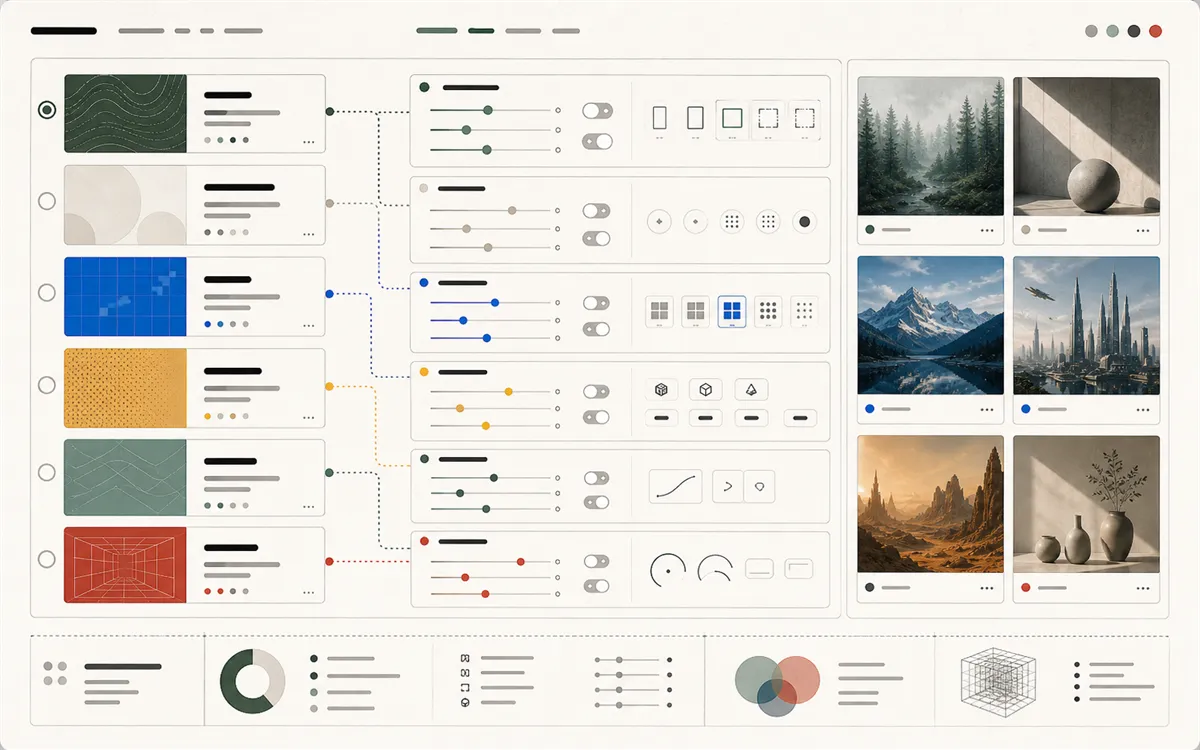
Write a focused prompt and turn it into polished product visuals, campaign concepts, thumbnails, editorial images, and other production-ready assets inside the same generator.

  • Start from a natural-language prompt
  • Use the selected model's native size and quality controls
  • Preview results before downloading or integrating
Prompt-to-image workflow illustration

02

Edit existing images with references

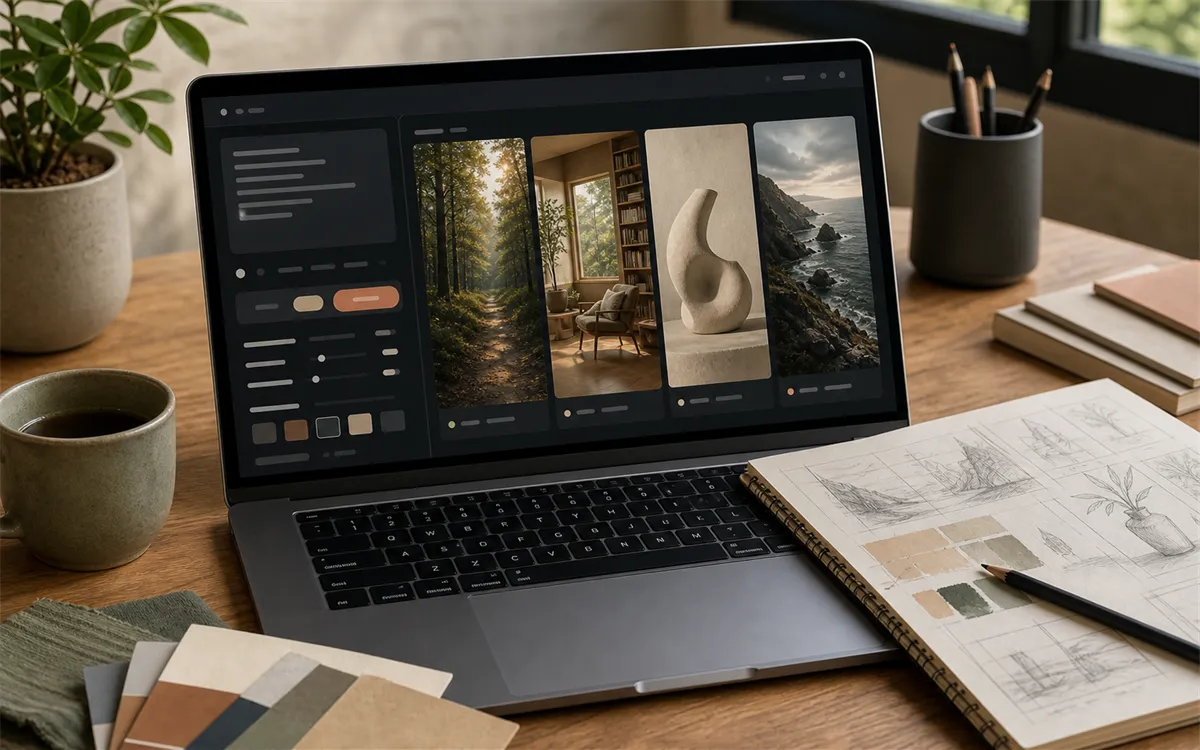
Use supported models to upload source images, guide local edits, refine details, create variations, or keep visual direction consistent across a batch of related assets.

  • Upload source or reference images where supported
  • Guide edits with prompts instead of rebuilding the scene
  • Keep variations tied to an existing visual direction
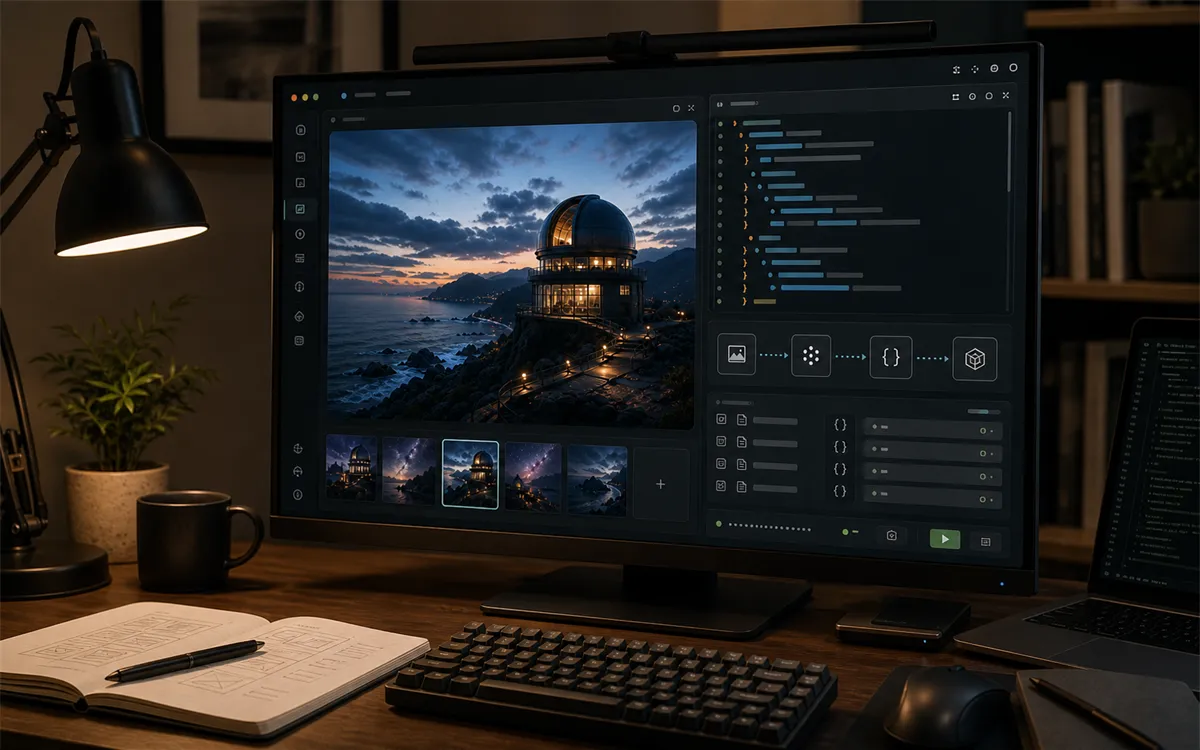
Reference image editing workflow illustration

03

Switch models without rebuilding the workflow

The page stays canonical while the Input panel changes the executable model and parameters. Each model keeps its own native controls, so unsupported options do not clutter the form.

  • Choose among image model families from one selector
  • Expose only parameters supported by the active model
  • Compare outputs without moving to another tool page
Model-specific controls workflow illustration

04

Move from preview to API-ready output

Run a generation, inspect the preview, review the structured response when needed, and download the result from one playground before moving the same model workflow into an API product.

  • Preview outputs in the browser
  • Inspect JSON responses for integration work
  • Download final images for handoff or production use
Preview and API output workflow illustration

What Can You Create with PoYo AI Image Generator?

01

Marketing visuals

Create campaign images, ad concepts, hero visuals, and social media creative without waiting on a full design cycle.

02

Product mockups

Generate product scenes, lifestyle shots, packaging concepts, and ecommerce visuals for testing and iteration.

03

Concept art and storyboards

Explore characters, environments, visual moods, and storyboard frames before committing to production assets.

04

Education and publishing

Produce diagrams, article visuals, lesson illustrations, and editorial images that match a clear prompt direction.

05

Brand design iteration

Test multiple visual styles, lighting directions, compositions, and reference-driven variations for brand work.

06

Developer image workflows

Use the playground to validate prompts and parameters before moving the same model workflow into API-driven products.

How to Use AI Image Generator on PoYo

1. Choose a model in the Input panel. Open the Model selector and pick the provider and executable model that matches your goal.

2. Add your prompt or reference image. Describe the subject, style, lighting, composition, and output goal. For supported edit models, upload the image or reference assets required by that model.

3. Adjust dynamic parameters. Set the options shown by the selected model, such as aspect ratio, resolution, quality, edit mode, or reference strength when available.

4. Run, preview, and download. Submit the generation, review the preview, inspect the JSON response if needed, and download the final image.

Frequently Asked Questions about AI Image Generator

Which AI image model should I choose first?

Start with GPT Image for a balanced general workflow. Try Nano Banana for realistic and instruction-heavy images, FLUX for control and variant flexibility, and Seedream or Kling when you want a different creative style.

Can I edit existing images?

Yes. Select an executable edit model when image editing is required. The Input panel will show the upload fields and edit-specific parameters supported by that model.

Can I use generated images commercially?

Commercial use depends on the selected model, provider terms, and your own usage context. Review the relevant model terms and avoid uploading or generating content that you do not have the rights to use.

How do I improve image quality?

Write prompts with a clear subject, style, lighting, composition, and technical details. If the result is close but not final, refine the prompt, switch models, or use an edit model with reference images.

Does switching models change the page URL?

No. The generator keeps a clean canonical URL. Model changes happen inside the Input panel, and the page returns to its default model after refresh.

How does pricing work?

The Pricing section updates to the currently loaded model family. Use it to check the active model cost before running larger generation batches.

Why Use PoYo for AI Image Generation?

01

One workspace for many models

Compare leading image models from multiple providers without opening separate tools or rebuilding prompts from scratch.

02

Native parameters stay intact

Each executable model keeps its own fields, validation, uploads, and result workflow instead of being forced into a generic form.

03

Transparent pay-as-you-go pricing

Check the current model family's pricing on the same page and avoid unnecessary subscription switching across providers.

04

Playground and API workflow

Use the playground to test prompts and settings, then move successful image generation workflows into API-powered products.