







01
FLUX 3 Klein: Text to Image
Use flux-3-klein to generate new images from prompt. Set size, resolution, n, output_format, and enable_safety_checker. Reference images are not accepted by this endpoint.

Example Output
This is sample data. Generate a new result to see real output.
Transparent pricing with no hidden fees. Pay as you go.
flux-3-kleinflux-3-kleinflux-3-klein| Model | Spec | PoYo price | Official price | You save |
|---|---|---|---|---|
| flux-3-klein | 1K flux-3-klein · flux-3-klein-edit | $0.009/image 1.8 credits /image | - | - |
2K flux-3-klein · flux-3-klein-edit | $0.014/image 2.8 credits /image | - | - | |
4K flux-3-klein · flux-3-klein-edit | $0.036/image 7.2 credits /image | - | - |
* Actual fees are based on the final output.
4K image generation, natural-language editing and multi-reference creation
Access FLUX 3 Image Klein through the PoYo API to add image generation and editing to your application. Create new visuals from text or use up to 10 reference images to guide subjects, styles and settings.
With output up to 4K and exact custom dimensions, prepare assets for product displays, marketing designs and editorial content. Test prompts and references in the Playground before integrating the same requests into your application.
Use flux-3-klein to generate new images from prompt. Set size, resolution, n, output_format, and enable_safety_checker. Reference images are not accepted by this endpoint.
Use flux-3-klein-edit with 1–10 images in image_urls and a text instruction. Edit a supplied image or combine visual references into a new composition, with the same output tiers as generation.
Create detailed assets, revise existing images, and choose the output dimensions your project needs.
01
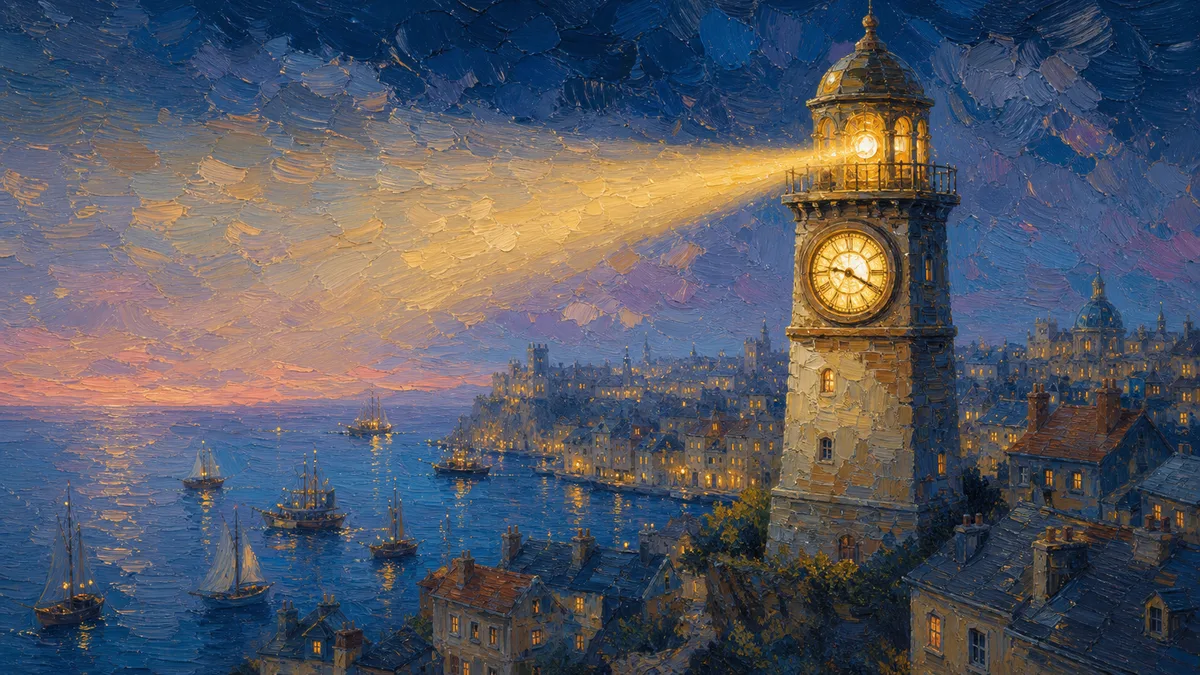
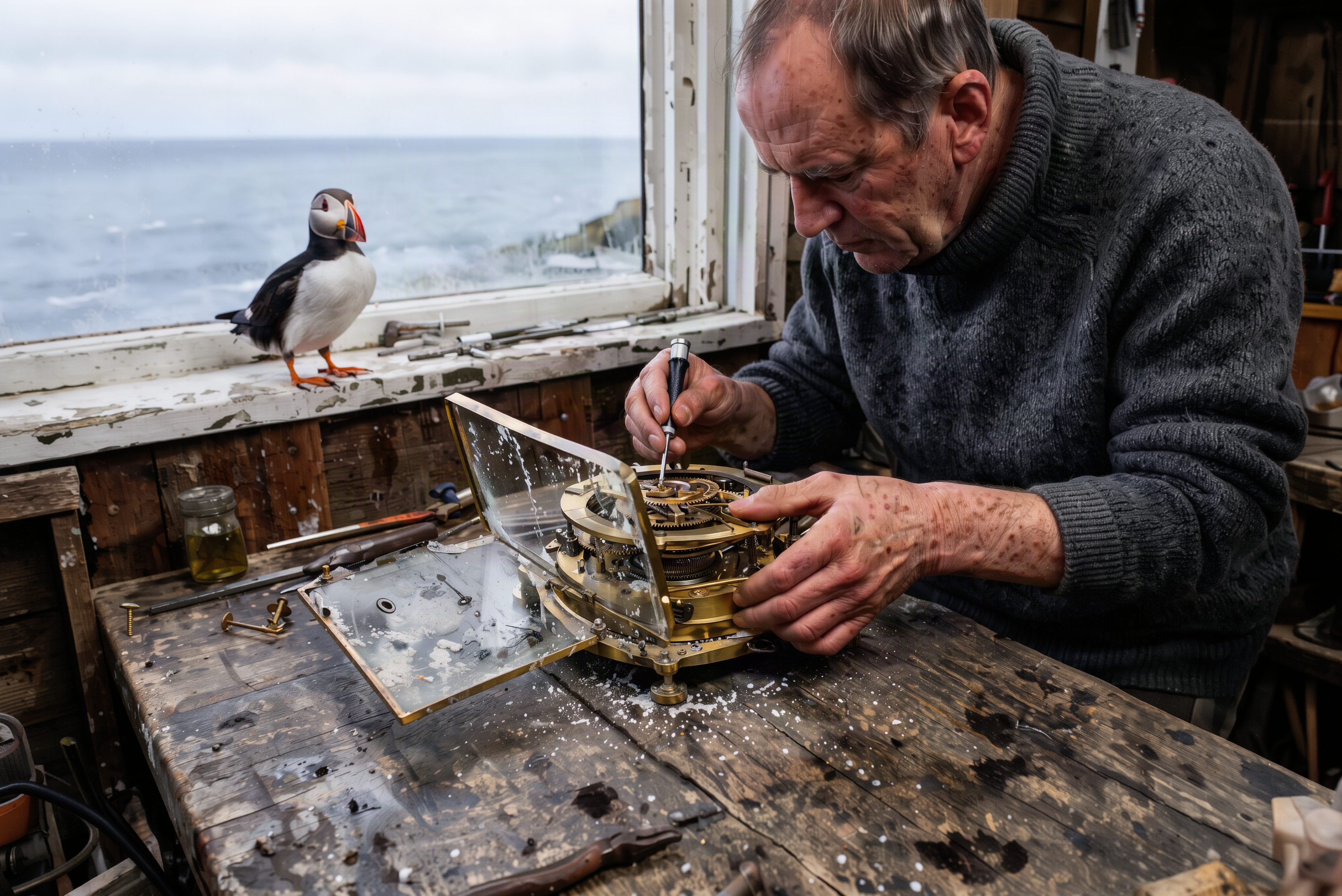
Image assets often need several sizes for web pages, product displays, and larger layouts. FLUX 3 Image Klein offers 1K, 2K, and 4K output tiers, so you can choose the level of detail your delivery format needs and request multiple variations together.
02
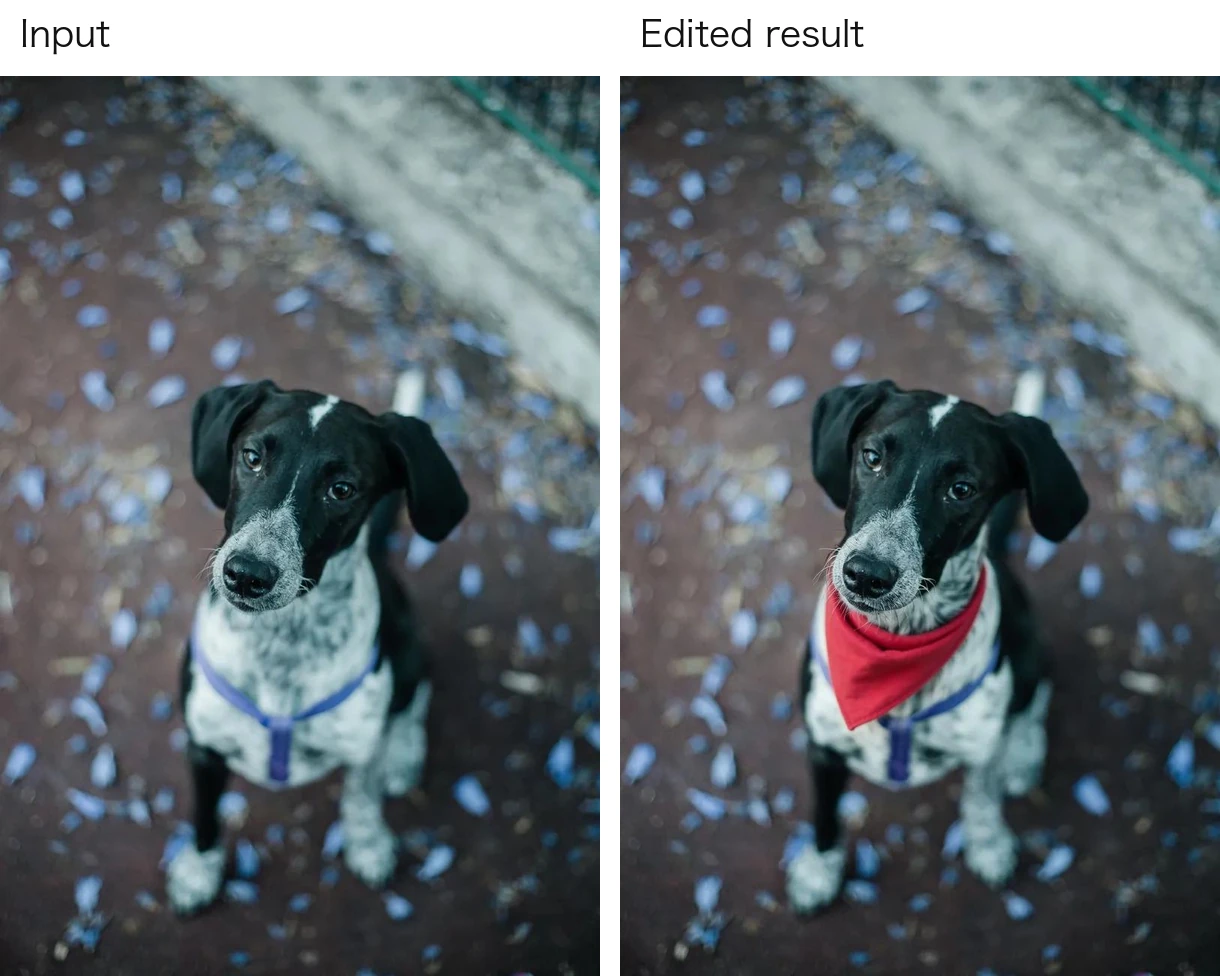
Describe the change you need instead of rebuilding the entire scene. Use the edit endpoint to adjust a season, add an accessory, or revise a setting from supplied images. Review the original and edited output together before using a result in your workflow.
03
Prepare an image for a square composition, a wide banner, or a portrait layout without changing models. Choose one of seven preset aspect ratios, or request exact dimensions from 256 to 4096 pixels per side in multiples of 16. Custom dimensions require an explicit matching resolution tier.
04
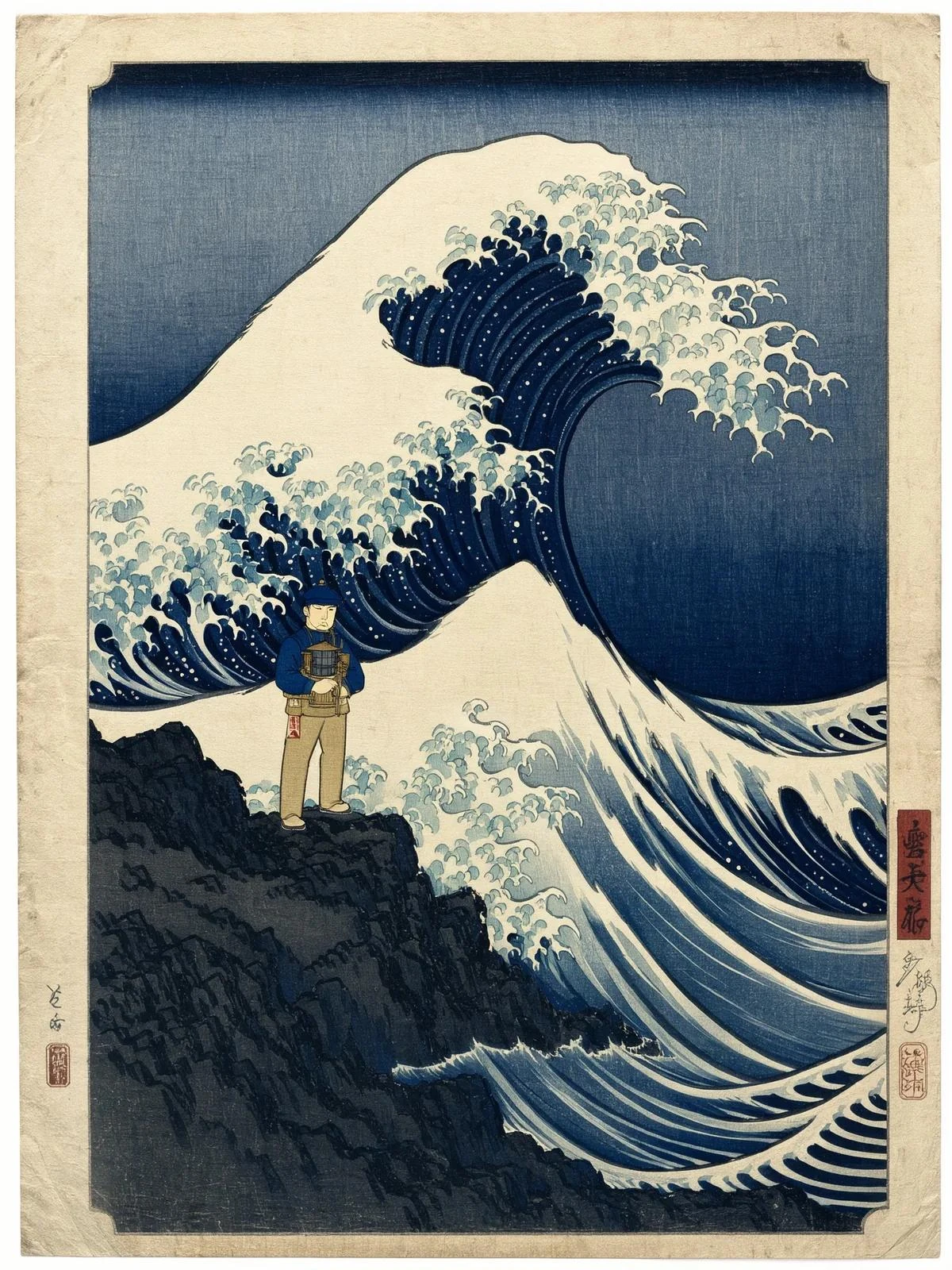
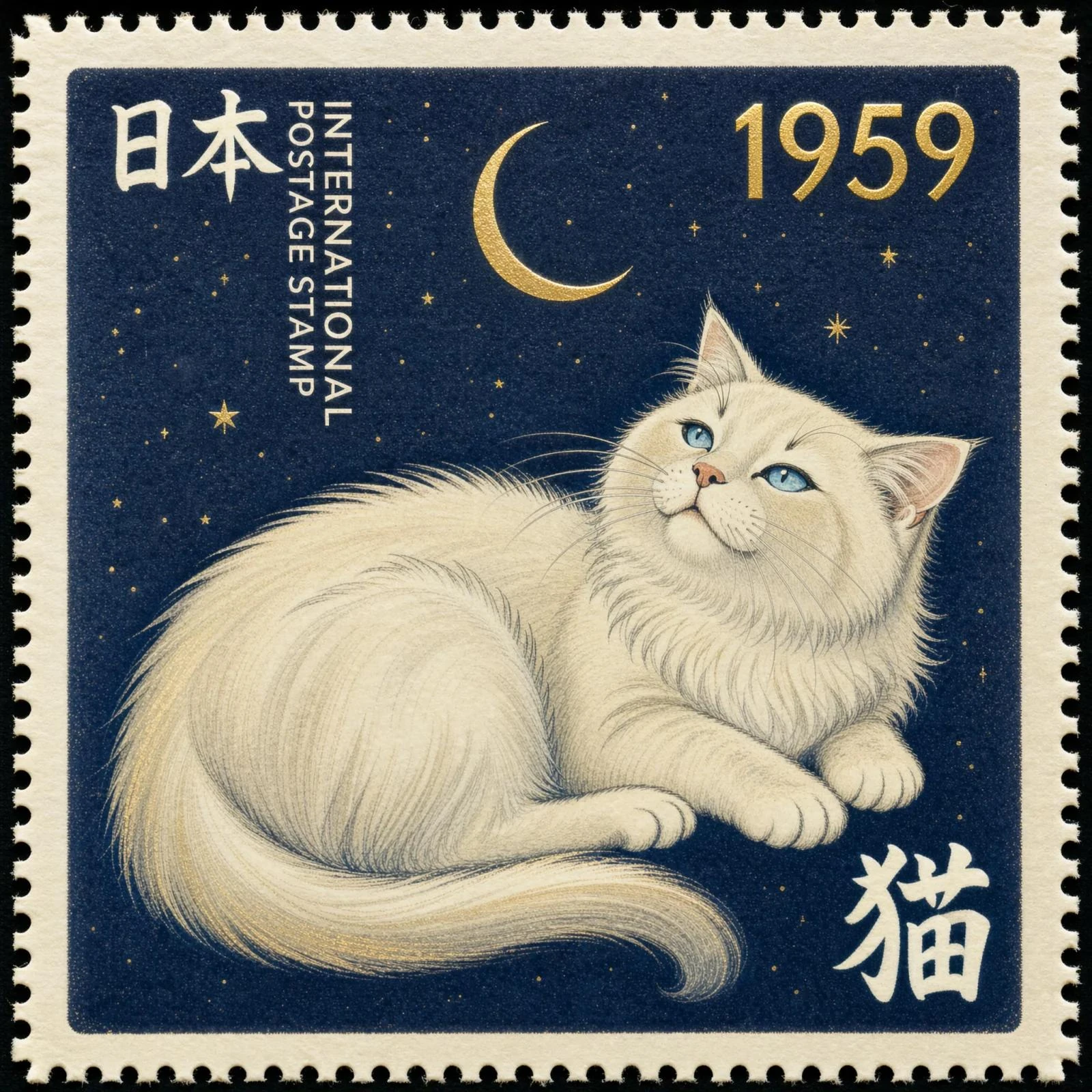
Develop different visual directions with the same image model, from photographs and illustrations to book-cover concepts and graphic layouts. Describe the subject, medium, lighting, and intended text in the prompt, then inspect the result for the details that matter to your project.
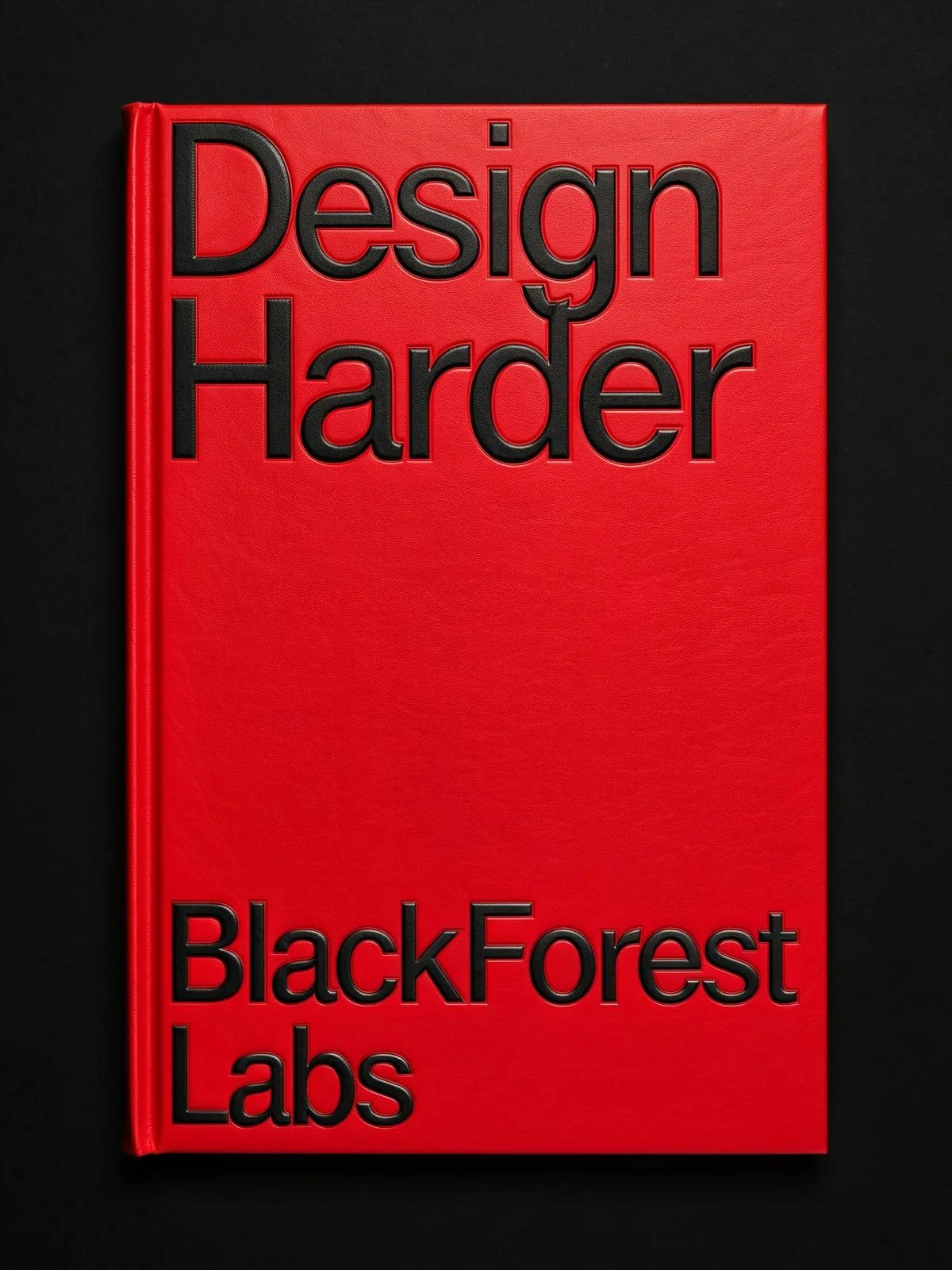
Use FLUX 3 Image Klein to develop product imagery and test new settings from existing images. Reference-guided edits help teams explore seasonal scenes and campaign concepts while reviewing the product's details against the input.
Create advertising concepts, poster compositions, and campaign variations with FLUX 3 Image Klein. Describe the composition in your prompt and use output-size controls to prepare drafts for different placements before design review.
Generate visual ideas and edit existing assets for posts, stories, and banners. FLUX 3 Image Klein's aspect-ratio options and multiple outputs per request support iteration across common social formats.
Use room references and text instructions to explore alternative materials, furnishings, and moods with FLUX 3 Image Klein. Treat the outputs as visual concepts that support discussion with clients and collaborators.
Explore styling, accessories, and settings from supplied fashion imagery. FLUX 3 Image Klein helps designers communicate visual directions and compare edited results with the original garments or reference images.
Develop illustrated scenes, cover concepts, and visual storyboards with FLUX 3 Image Klein. Combine descriptions and references to explore a project’s visual direction, then review text and continuity before production.
Explore how FLUX 3 Image Klein, FLUX 3 Image and FLUX.2 differ in output resolution, reference-based editing and composition control to choose a model for product visuals, illustration or design.
| Capability and access | FLUX 3 Image Klein | FLUX 3 Image | FLUX.2 |
|---|---|---|---|
| Main workflow | Compact image model for generation and instruction-based editing | Image generation, targeted editing, and composition control | Image generation and editing through Pro and Flex models |
| Output resolution | 1K, 2K, and 4K on PoYo | Native 2K and 4K | 1K and 2K on PoYo |
| Image references | 1–10 input images on the edit endpoint | Up to 10 reference images | 1–8 input images on PoYo edit endpoints |
| Composition guidance | Prompt and reference-image guidance | Bounding-box placement and targeted edits | Prompt-based guidance |
| PoYo model access | flux-3-klein and flux-3-klein-edit | Not available as a separate PoYo API | Pro, Pro Edit, Flex, and Flex Edit |
| Useful for | 4K assets, reference-guided edits, and custom output dimensions | Image creation with targeted edits and composition control | Existing FLUX.2 Pro and Flex image integrations |
Step 1: Get an API Key
Open your PoYo dashboard and create an API key for your application.
Get API Key →
Step 2: Add Credits and Test Parameters
Add credits, then choose generation or editing in the playground. Select the output resolution and check the estimated cost before running.
Add Credits →
Step 3: Integrate the Image Workflow
Submit the chosen model ID and input fields, retain the task ID, and retrieve the generated images when the task completes.
Read FLUX 3 Image Klein API Documentation →
Connect image generation and editing through one PoYo API key and the same task-based integration pattern used across the model catalog.
Compare the form and request JSON, test image inputs and output settings, and inspect results before moving the workflow into your application.
Review per-image rates by resolution and see an estimate for your chosen output count and playground batch size before submitting requests.
Track submitted task IDs and retrieve results through the shared generation workflow, with individual status and output handling for batch requests.