





01
Single-image to 3D
Use meshy-7.1-image-to-3d with one reference image. The standard model type supports standard, 2k, or 4k geometry tiers; Smart Topology provides a separate mesh option suitable for lower target polygon counts.

Drop files here, paste files, or add a URL. Upload an image of your object. JPG, PNG, WebP, AVIF or HEIF; up to 10 MB per image.

Drop files here, paste files, or add a URL. Optional texture reference image; up to 10 MB.
Transparent pricing with no hidden fees. Pay as you go.
meshy-7.1-image-to-3dmeshy-7.1-image-to-3dmeshy-7.1-image-to-3dmeshy-7.1-image-to-3dmeshy-7.1-image-to-3dmeshy-7.1-image-to-3dmeshy-7.1-text-to-3dmeshy-7.1-text-to-3dmeshy-7.1-text-to-3dmeshy-7.1-text-to-3dmeshy-7.1-text-to-3dmeshy-7.1-text-to-3dmeshy-7.1-multi-image-to-3dmeshy-7.1-multi-image-to-3dmeshy-7.1-multi-image-to-3dmeshy-7.1-multi-image-to-3dmeshy-7.1-multi-image-to-3dmeshy-7.1-multi-image-to-3d| Model | Spec | PoYo price | Official price | You save |
|---|---|---|---|---|
| meshy-7.1-image-to-3d | Geometry only | $0.800/gen 160 credits /gen | - | - |
Geometry + texture (default) | $1.20/gen 240 credits /gen | - | - | |
Geometry + rigging | $1.00/gen 200 credits /gen | - | - | |
Geometry + texture + rigging | $1.40/gen 280 credits /gen | - | - | |
Geometry + rigging + animation | $1.12/gen 224 credits /gen | - | - | |
Geometry + texture + rigging + animation | $1.52/gen 304 credits /gen | - | - | |
| meshy-7.1-text-to-3d | Geometry only | $0.800/gen 160 credits /gen | - | - |
Geometry + texture (default) | $1.20/gen 240 credits /gen | - | - | |
Geometry + rigging | $1.00/gen 200 credits /gen | - | - | |
Geometry + texture + rigging | $1.40/gen 280 credits /gen | - | - | |
Geometry + rigging + animation | $1.12/gen 224 credits /gen | - | - | |
Geometry + texture + rigging + animation | $1.52/gen 304 credits /gen | - | - | |
| meshy-7.1-multi-image-to-3d | Geometry only | $0.800/gen 160 credits /gen | - | - |
Geometry + texture (default) | $1.20/gen 240 credits /gen | - | - | |
Geometry + rigging | $1.00/gen 200 credits /gen | - | - | |
Geometry + texture + rigging | $1.40/gen 280 credits /gen | - | - | |
Geometry + rigging + animation | $1.12/gen 224 credits /gen | - | - | |
Geometry + texture + rigging + animation | $1.52/gen 304 credits /gen | - | - |
* Actual fees are based on the final output.
Fine surface geometry, from reference to 3D asset
Official Meshy demonstrations illustrate the workflows below. These are reference materials, not PoYo generation examples.
01
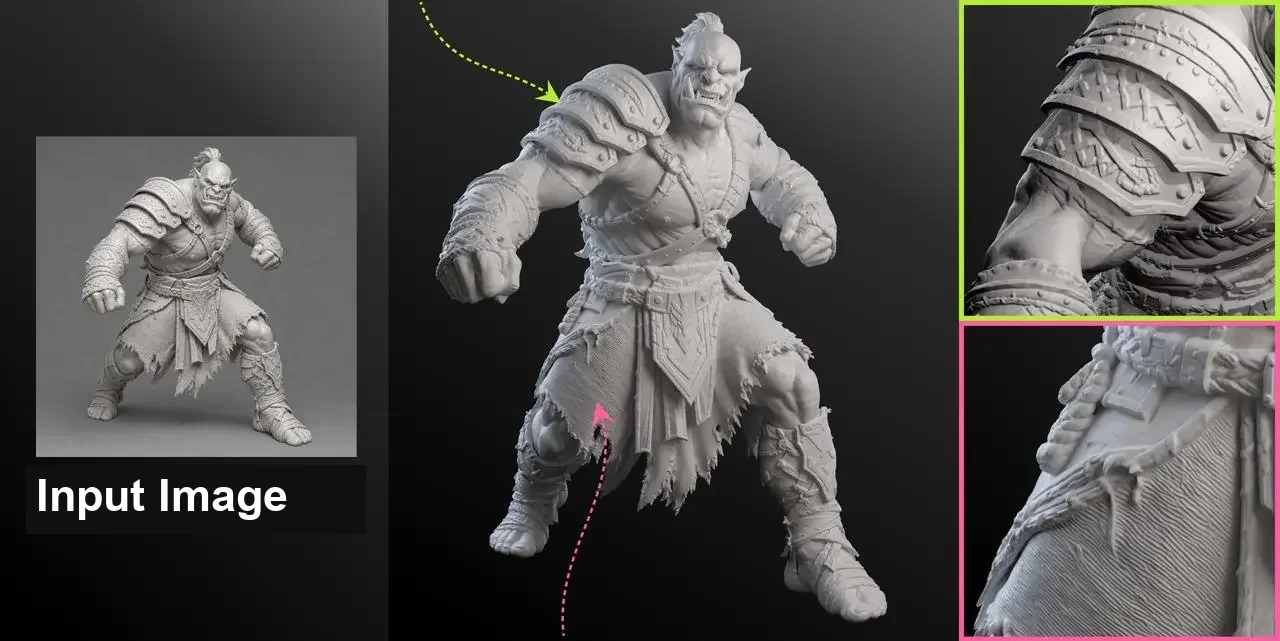
Move from a flat character concept to a 3D shape you can inspect from more angles. Meshy 7.1 reconstructs fine surface forms from an image, giving artists a starting point for further modeling. The official orc example pairs the actual input with its clay-rendered result and close-ups, making it easier to inspect geometry independently of color.
02
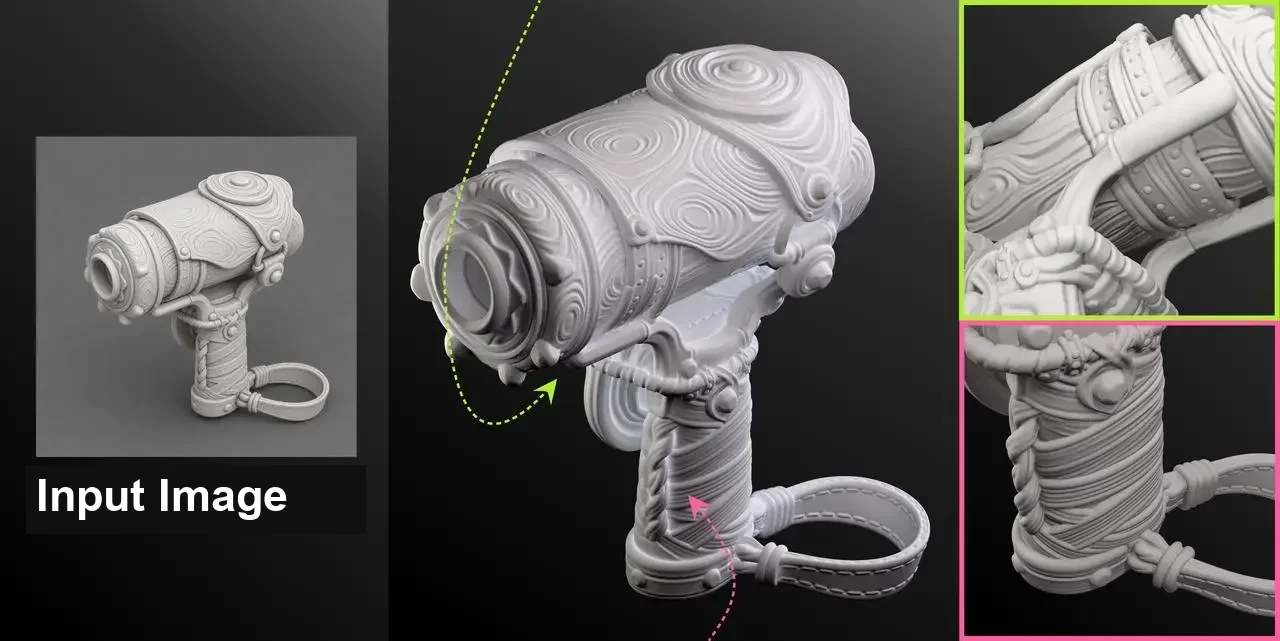
Carvings, creases, and wood grain can disappear when detail lives only in a texture. Meshy 7.1 focuses on surface geometry, so small forms remain visible in clay renders. Use the geometry resolution setting when your assets need closer inspection, then choose a polygon budget appropriate to your project.
03
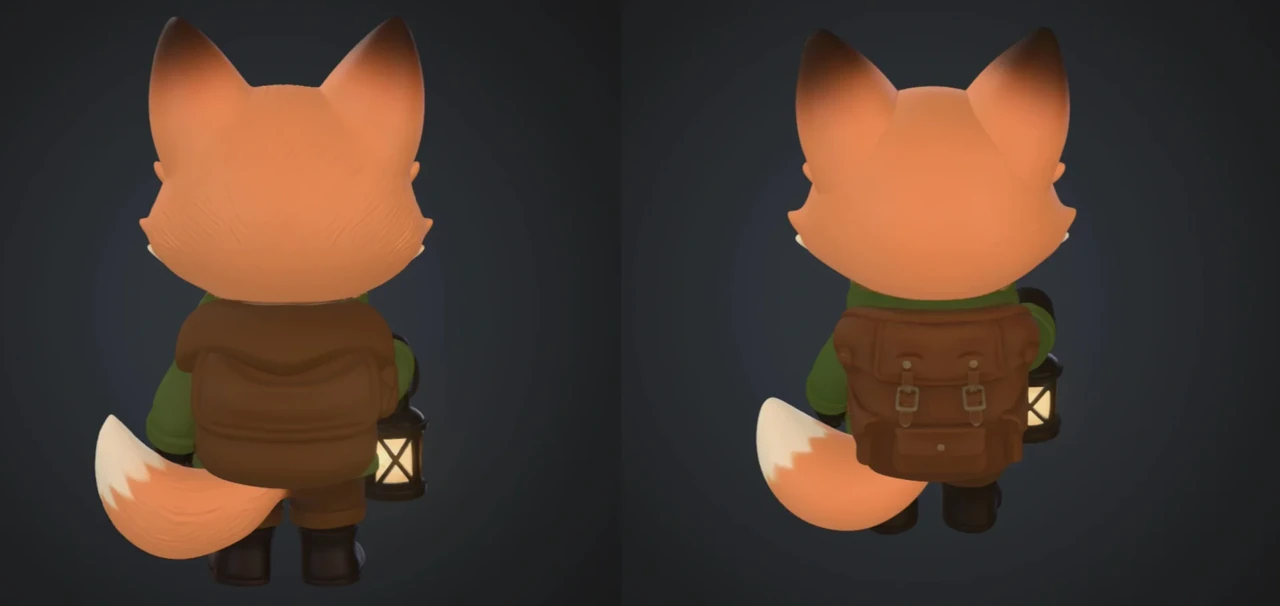
A single image may leave the back or sides of an object ambiguous. The multi-image endpoint accepts up to four views of the same subject, giving the generation workflow more visual information. Prepare consistent angles and choose standard or 2k geometry for this endpoint; 4k remains a single-view option. The illustration is an official Meshy 7 workflow example, not a Meshy 7.1 or PoYo result.
04
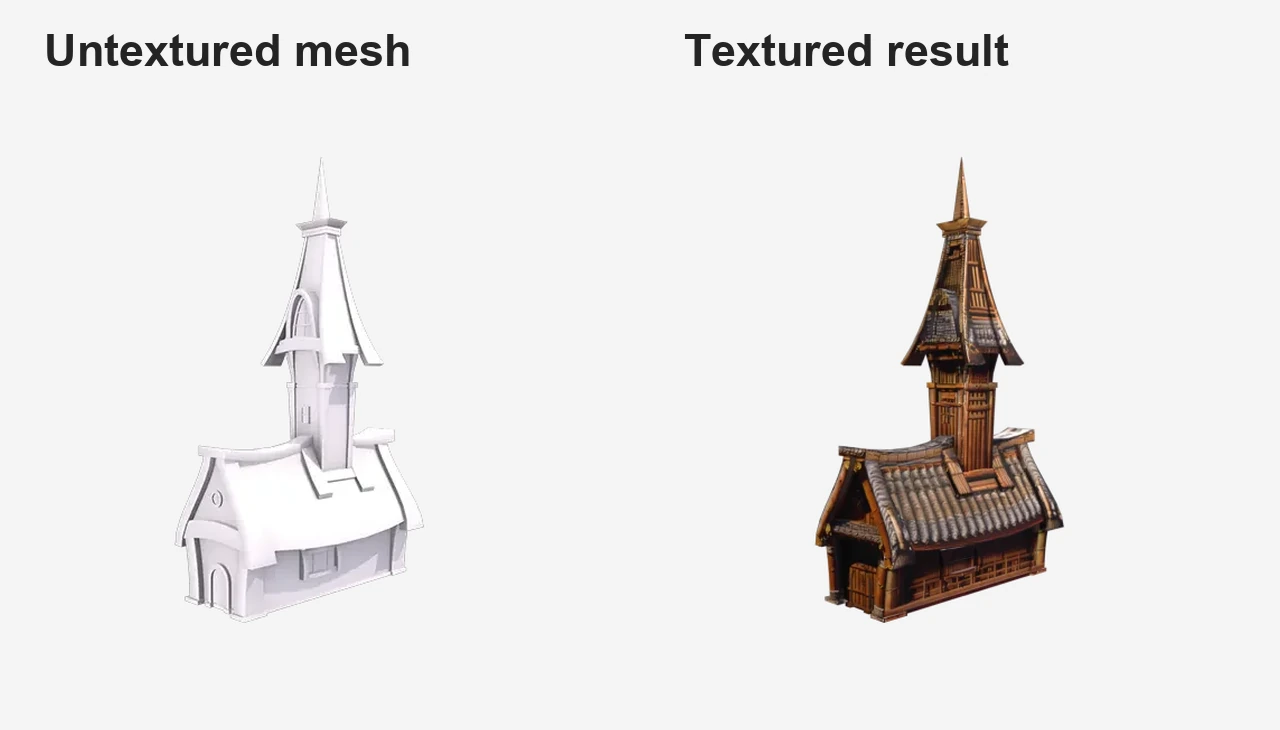
Different production stages need different outputs. Start with geometry for shape work, or enable textures when you need a colored asset. Optional PBR material generation supports rendering workflows. The official Meshy texture illustration shows an untextured and textured version of the same asset; available files depend on the completed task.
Turn character and prop references into 3D starting assets with Meshy 7.1. Adjust polygon targets and topology, then review and optimize the result for the requirements of your game engine.
Explore shapes from concepts while retaining visible carvings, folds, and surface forms. Meshy 7.1 helps artists move into mesh refinement without rebuilding every initial shape by hand.
Build detailed geometry from reference images for sculptural and printing projects. Inspect thickness, watertightness, support needs, and the final mesh in your own printing tools before manufacturing.
Use multiple views of a product to guide asset generation, then add textures for visual review. Check dimensions, hidden surfaces, and material accuracy against the original product before delivery.
Prototype 3D objects for immersive scenes from images or text through PoYo. Choose an appropriate mesh budget, then test runtime performance and visual behavior in your target environment.
Add Meshy 7.1 to creative applications through a shared asynchronous API. Submit the selected input workflow, track task completion, and present the returned model files, texture files, or other generated results in your product.
Compare the API options currently exposed on PoYo. These settings describe workflow choices, not a quality ranking or a benchmark of generated results.
| API capability | Meshy 7.1 | Tripo H3.1 |
|---|---|---|
| Input workflows | Text, single image, multi-image | Text, single image, multiview |
| Images used for geometry | Single image: 1; multi-image: 1–4 | Single image: 1; multiview: 2–4 |
| Optional PBR materials | enable_pbr | pbr |
| Mesh topology | triangle or quad | Triangle or Quad via quad switch |
| Geometry controls | Standard model type: standard / 2k / 4k; multi-image: standard / 2k | geometry_quality: standard / detailed |
Based on PoYo's implemented request fields and the vendors' official documentation. Meshy text-to-3D is a separate service workflow. Meshy 4k refers to geometry, not texture resolution; Smart Topology does not accept geometry_resolution. Settings with different names are not equivalent resolution or quality benchmarks.
Step 1: Create an API Key
Sign in to PoYo and create the key your application will use to authenticate requests.
Create API Key →
Step 2: Prepare Your Account
Review the pricing table above and add credits for your selected generation and optional processing settings.
Add Credits →
Step 3: Submit and Track a Task
Send model and input to POST /api/generate/submit. Keep data.task_id and poll GET /api/generate/status/{task_id}, or supply callback_url for completion updates. Download the files returned by the finished task.
View API Documentation →
Meshy 7.1 is Meshy's AI model for generating 3D assets with fine surface geometry. It turns image references into detailed shapes for characters, props, and creative production. PoYo provides single-image, multi-image, and a separate text-to-3D workflow through an asynchronous API with task status and downloadable result files.
Yes. PoYo exposes meshy-7.1-text-to-3d with a prompt of 1–600 characters. Choose mode=preview for geometry or mode=full for textured output. This is a separate text-driven service workflow; image-based endpoints require image_urls instead of a prompt.
The single-image endpoint requires exactly one image_urls entry. The multi-image endpoint accepts 1–4 images. Use clear views of the same object with consistent appearance and lighting. Image inputs may be publicly accessible HTTP(S) URLs or supported image data URIs.
No. geometry_resolution controls geometry detail, not texture image dimensions. The standard model type on text and single-image endpoints accepts standard, 2k, and 4k. The multi-image endpoint accepts standard and 2k. Smart Topology is a separate option and does not accept geometry_resolution.
Text and single-image endpoints support model_type=smart-topology with target_polycount from 100 to 15,000, defaulting to 4,000. Standard mode supports 100–300,000 with a default of 30,000. Multi-image uses the standard range and does not accept model_type. The target is a mesh-generation setting rather than an exact output guarantee.
Optional enable_rigging and enable_animation settings are available. Animation requires rigging to be enabled. rigging_height_meters defaults to 1.7; animation_action_id defaults to 92 and accepts integers from 0 to 696. Review character suitability and the returned files before using the result in production.
Completed tasks expose downloadable files in data.files[].file_url with file_type. Depending on the workflow and enabled options, results can include model files, a thumbnail, textures, or rigged and animated assets. Read the actual response rather than assuming every export format is included in every task.
Keep the task_id returned at submission. Poll the task status until it is finished or failed, or supply a callback_url. Processing time varies with the input and enabled settings. A temporary status-query error does not require another generation submission; continue checking the existing task.
Use the same authentication and task protocol for text, single-image, and multi-image generation. Select the model ID that fits your input without maintaining a separate integration for each workflow.
Review the supported rate combinations and see the Playground estimate respond to texture, rigging, and animation settings. The estimate and pricing table read the same model catalog.
Inspect the request in a form or JSON before integrating. Use the supported geometry, mesh, and optional processing settings, with validation to catch incompatible combinations before submission.
Use model-specific request documentation, task IDs, status queries, and callbacks to connect generation to your application. Retrieve the returned files after the task finishes.