
Blur Image
Use PoYo.ai to blur image areas with AI. Create background blur, hide private details, soften busy scenes, and keep the subject sharp.
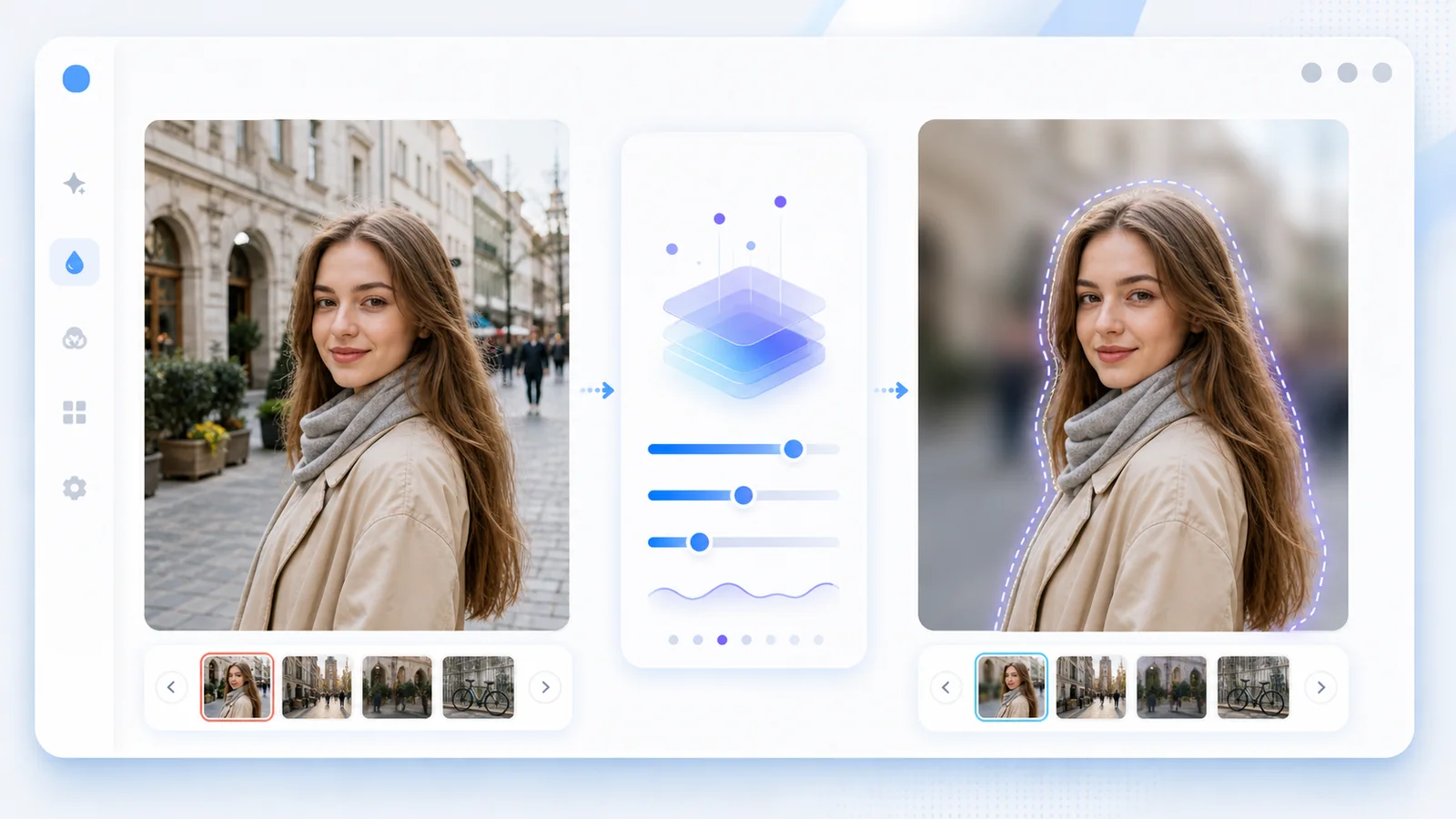
AI Background Blur
Turn busy backgrounds into smooth portrait-style bokeh while preserving people, products, and key objects.
Adjustable Blur Strength
Control soft blur, heavy blur, radial blur, and selective blur with clear prompts or masks.
Privacy Blur
Hide faces, plates, addresses, receipts, screens, and personal details before sharing an image.
Subject-Aware Editing
PoYo.ai separates foreground and background so the blur effect feels intentional, not smeared.
Use Cases
Where Blur Image Helps
Portraits
Blur the background to make the person stand out.
Product Photos
Soften clutter behind a product without reshooting.
Privacy Sharing
Blur faces, names, addresses, and sensitive details.
Thumbnails
Create focus around the main subject for social covers.
Real Estate
Blur license plates, neighbors, or private areas in property images.
UI Screenshots
Hide customer data or account details in product demos.
How To Use
How to Blur Image on PoYo.ai
Decide whether you want a beauty-style background blur or a privacy blur. The prompt should say what stays sharp.
1. Upload
- Use a sharp source image.
- Keep the subject visible.
- Avoid already-blurry originals when possible.
2. Choose Blur Type
- Use background blur for portraits.
- Use privacy blur for faces or data.
- Use selective blur for one area only.
3. Prompt Clearly
- Name what must stay sharp.
- Describe blur strength.
- Try: Blur the busy street background with a soft portrait bokeh, keep the person sharp, preserve skin, hair, clothing, color, and image size.
4. Export
- Inspect subject edges.
- Check sensitive details are hidden.
- Save settings for similar photos.
FAQ
Blur Image FAQ
Yes. Ask PoYo.ai to keep the subject sharp and blur only the background.
Yes. Use privacy blur for faces, plates, addresses, receipts, screens, and other sensitive details.
It works best when the subject is clear and separated from the background. Complex hair or transparent objects may need another pass.
Background blur, bokeh blur, face blur, motion-style blur, and selective area blur cover most image editing needs.
Use a prompt like: Blur the busy street background with a soft portrait bokeh, keep the person sharp, preserve skin, hair, clothing, color, and image size.
Explore More AI Features
Blur Image With PoYo.ai
Create clean background blur, privacy blur, and focus effects online.
Best results come from sharp images and a clear subject or target area.