Seedream 5.0 Flash: Pricing, Multi-Reference Editing & API Guide
Use Seedream 5.0 Flash on Poyo for $0.02 per image, with 1K, 1.5K, and 2K output and up to 10 editing references. Explore examples, prompt tips, and API steps.

Seedream 5.0 Flash is ByteDance’s model in the Seedream 5.0 family for efficient image generation and editing. On Poyo, both workflows cost 4 credits ($0.02) per image, with 1K, 1.5K, and 2K output and up to 10 reference images for editing. The official release notes position it for workloads sensitive to latency and cost.
To explore different versions of a product, character, or multilingual asset, generate candidates first, then refine your selection with references. Through ingredient illustrations, portrait scenes, and a porcelain display, this guide explains reference roles, prompt writing, creative budgets, and the playground and API steps.
Seedream 5.0 Flash Pricing, Output, and Editing Settings at a Glance
| Item | Feature on Poyo |
|---|---|
| Provider | ByteDance |
| Text-to-image model | seedream-5.0-flash |
| Image editing model | seedream-5.0-flash-edit |
| Output resolution | 1K, 1.5K, 2K; API default 1K |
| Aspect ratios | 1:1, 4:3, 3:4, 16:9, 9:16, 2:3, 3:2, 21:9 |
| Editing references | 1–10 images |
| Output per request | One image |
| Optional output formats | JPEG, PNG |
| Safety checker parameter | enable_safety_checker |
| Generation and editing price | 4 credits / $0.02 per image |
Try generation and editing on the Seedream 5.0 Flash model page. The API documentation covers the complete parameters.
Which Workflows Suit Seedream 5.0 Flash?
Repeated Creative Exploration
Keep the subject and style fixed while adjusting backgrounds, colors, framing, or copy across rounds to build a set of comparable candidates. Flash’s cost and efficiency focus suits this approach to drafting. Teams can turn each round’s brief into a prompt and record its output and price.
Multilingual Visual Content
Seedream 5.0 Flash supports multilingual generation. For illustrated cards, exhibit labels, and localized visuals, specify the language, exact copy, and layout hierarchy together. Clear positions for the title, illustration, and supporting text help express the creative brief.
Multi-Reference Editing
The edit model can combine 1–10 references. Supply a person, product, and environment separately, then describe their relationship for portrait scenes, product background changes, and object composition. Specify the subject’s silhouette, materials, clothing, and scene structure, along with lighting and perspective requirements.
Seedream 5.0 Flash vs. Lite vs. Pro
Flash, Lite, and Pro are models within ByteDance’s Seedream 5.0 family. Choose by iteration budget, output dimensions, and the complexity of the creative brief.
| Comparison | Seedream 5.0 Flash | Seedream 5.0 Lite | Seedream 5.0 Pro |
|---|---|---|---|
| Positioning | Cost-efficient generation and editing for repeated creative exploration | Generation and editing with flexible output sizes | Complex prompt following and precise image editing |
| Creative strengths | Multilingual visuals, multi-reference composition, concept iteration | 2K/3K assets, custom dimensions, reference-based editing | Dense layouts, multilingual typography, precise regional edits |
| Output resolution on Poyo | 1K, 1.5K, 2K | 2K, 3K, and custom dimensions | 1K, 2K |
| Poyo price per image | 4 credits ($0.02) | 5 credits ($0.025) | 15 credits ($0.075) |
| Suggested briefs | Drafts, product scene candidates, localized illustration cards | Assets with specified dimensions, larger visuals, creative edits | Detailed posters, complex compositions, targeted refinements |
Start with Flash when exploring several 1K–2K candidates and planning a clear per-round budget. Choose Lite when delivery calls for 3K or specific dimensions. For a dense layout or precise editing brief, test Pro with the same references and copy, then assess composition, lettering, and subject integration against your requirements.
Seedream 5.0 Flash Examples: Multilingual Illustration and Multi-Reference Editing
These inputs and outputs come from the generation examples on Poyo’s model page. Each example explains the reference roles, requested aspect ratio and resolution, and details to inspect in the result.
1. Ingredient Notes in Three Languages
|
Input Prompt excerpt
|
Output 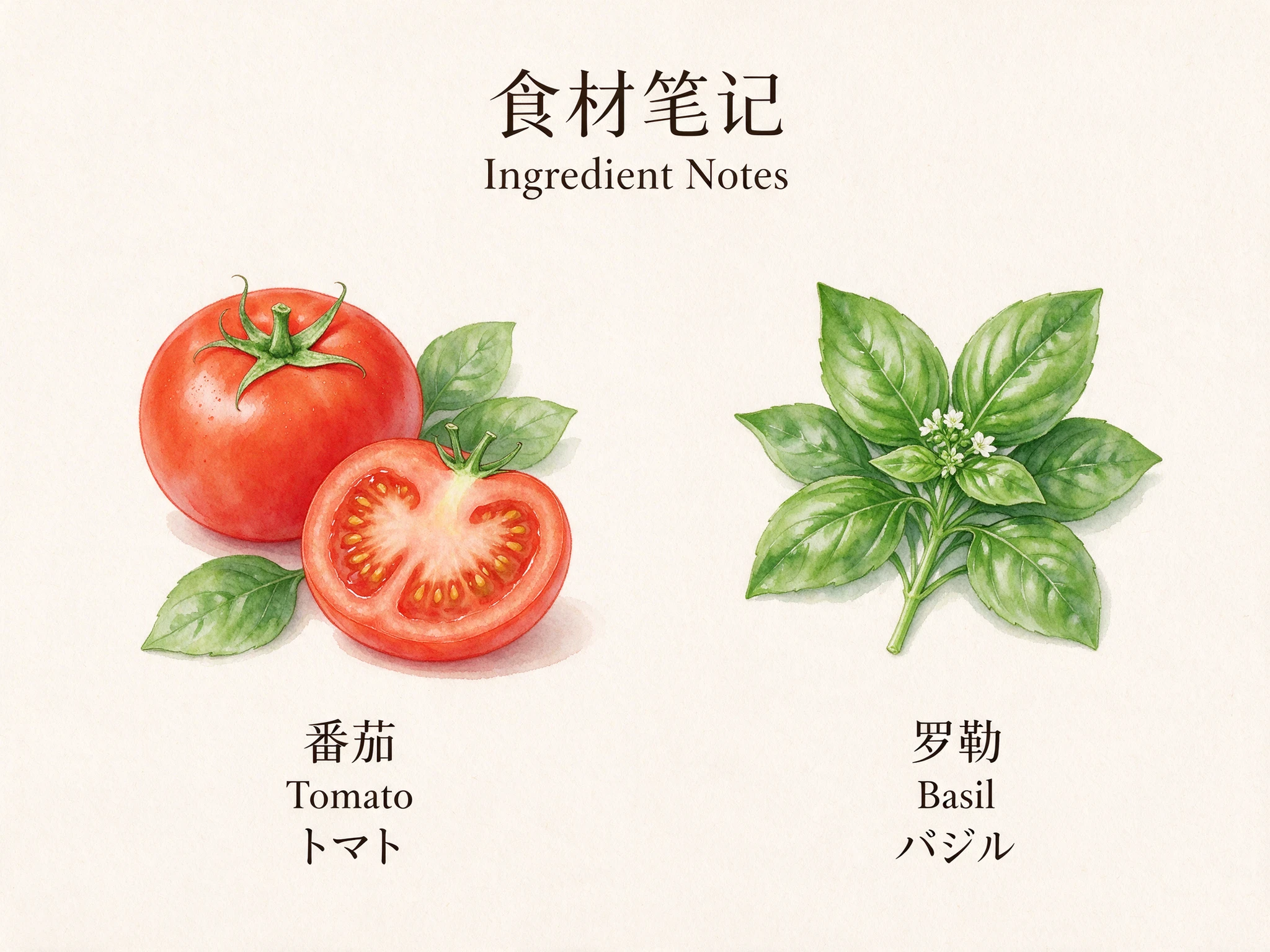
|
Input and settings: Generate from a text prompt at 4:3 and 2K. The prompt places tomatoes and basil in separate columns and specifies warm ivory paper, watercolor illustrations, and labels line by line.
What to inspect: The title reads “食材笔记 / Ingredient Notes”, with Chinese, English, and Japanese labels underneath. Check the relationship between each ingredient and its labels, then review title hierarchy, letter spacing, and margins.
Prompt approach: Define the two-column composition, supply each label, and then describe typography, spacing, and margins. Use the same element-to-label structure for recipe cards, learning materials, and multilingual product introductions. Proofread each line and check its relationship to the illustration before delivery.
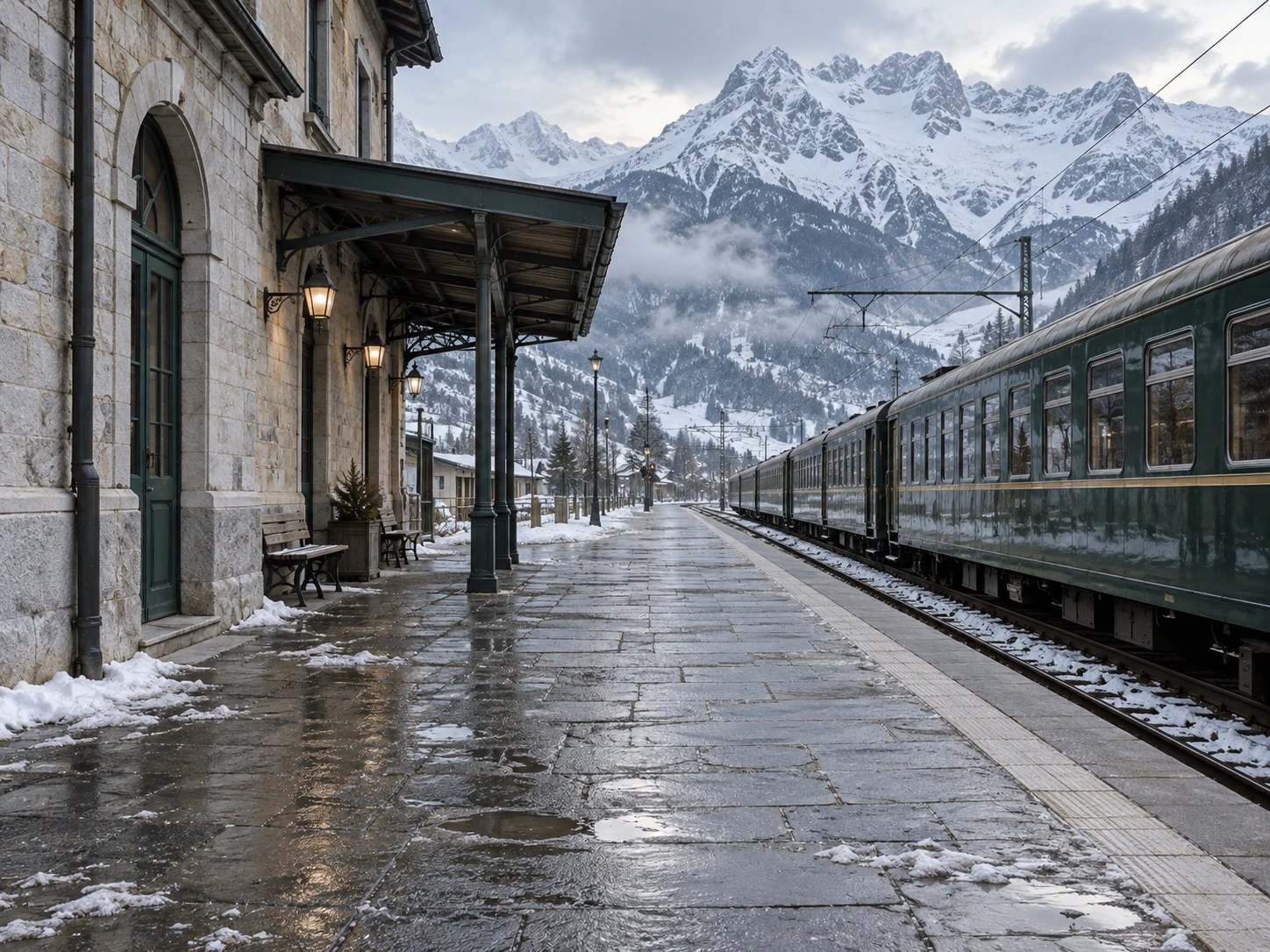
2. Place a Person in an Alpine Station
|
Input 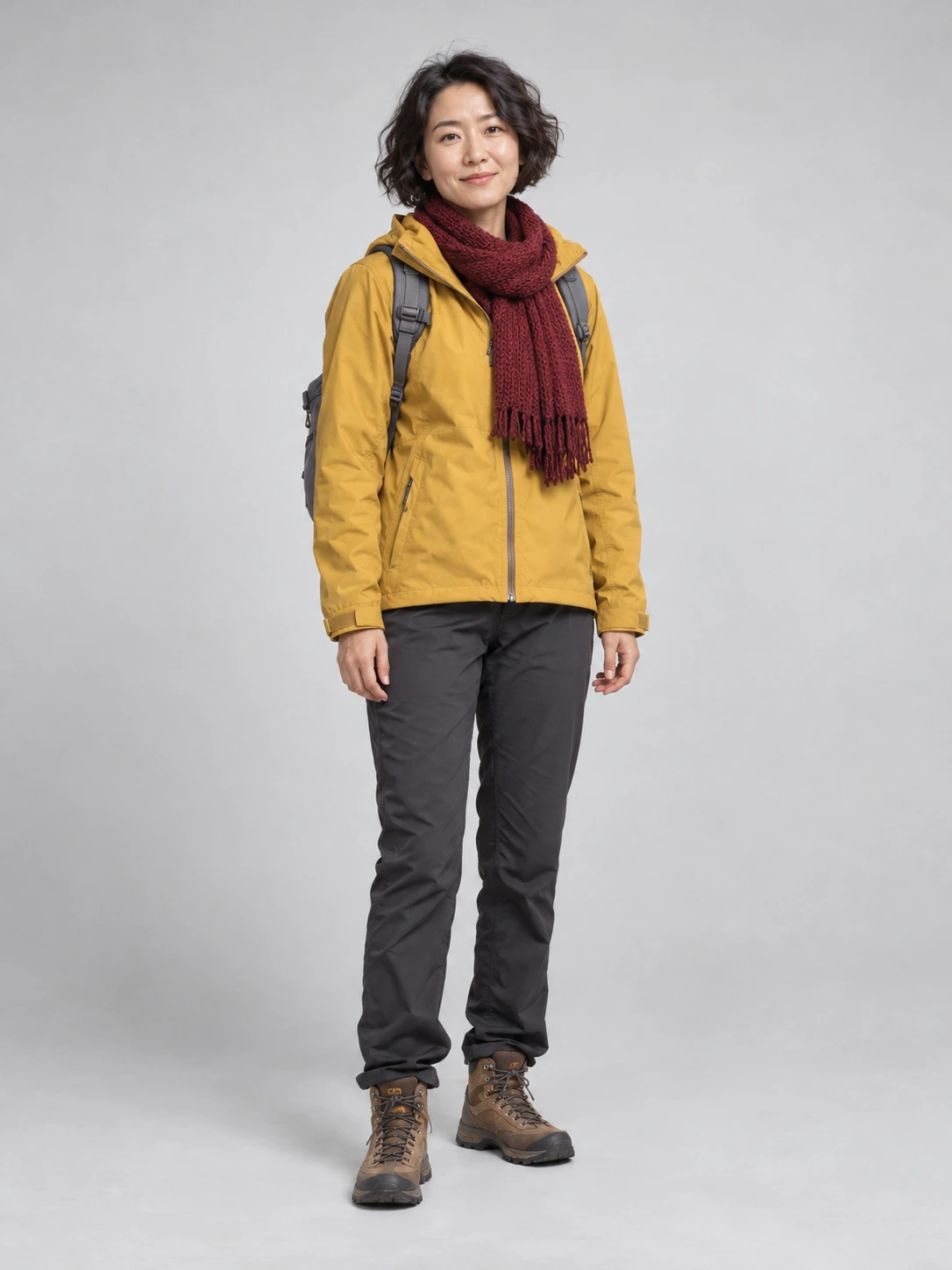
Prompt excerpt
|
Output 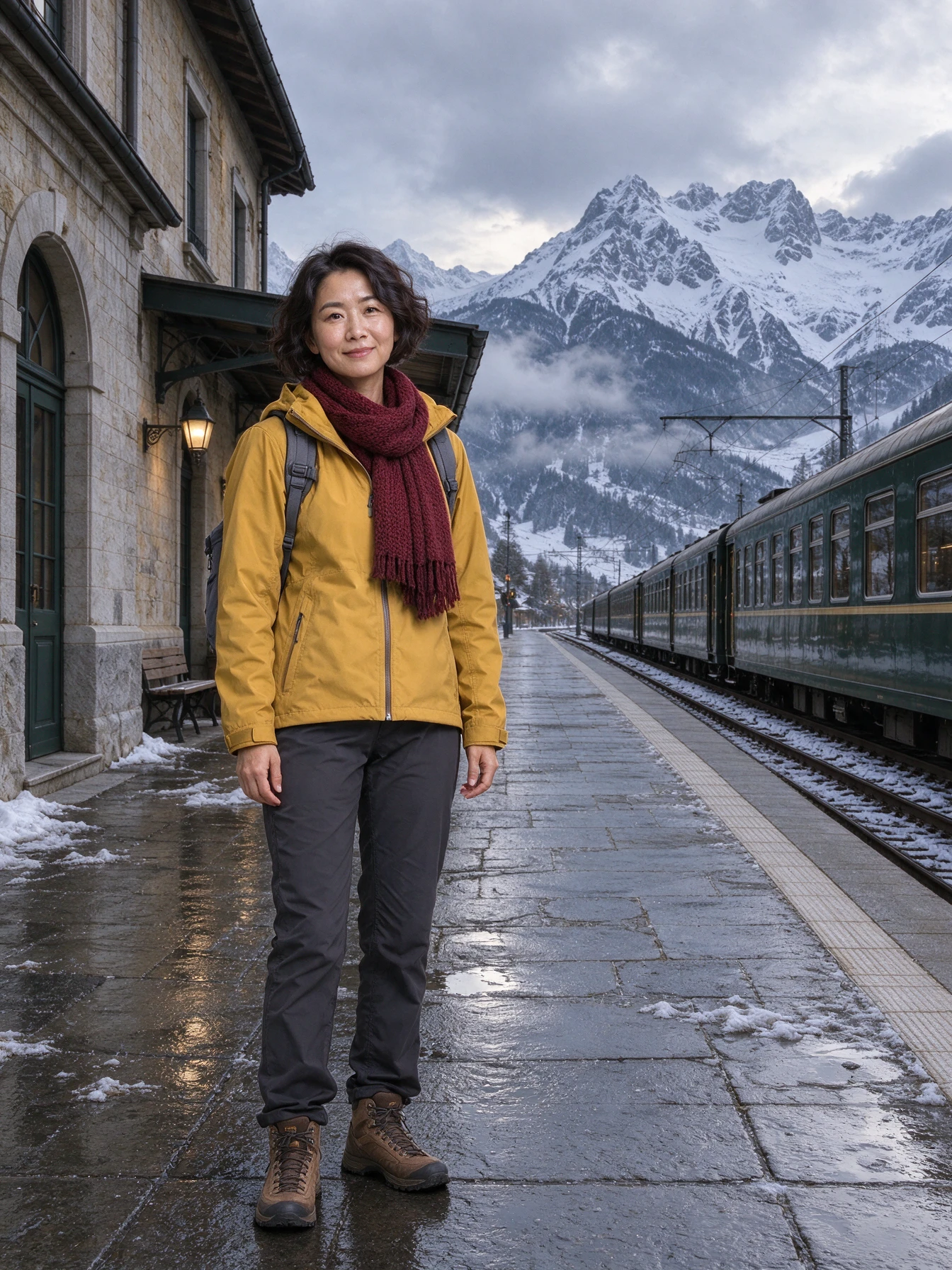
|
Input and settings: Image 1 supplies the character and image 2 the station. Generate one travel photo at 3:4 and 1.5K.
What to inspect: Compare the face, yellow jacket, and burgundy scarf with image 1, then the stone station, green train, and snowy mountains with image 2. Finally, check the scale, lighting, and contact shadows between the person and platform.
Prompt approach: Assign separate sources for the person and environment, then specify placement, full-body framing, light, scale, and contact shadows. This division of reference roles suits travel concepts, portrait scenes, and clothing visuals.
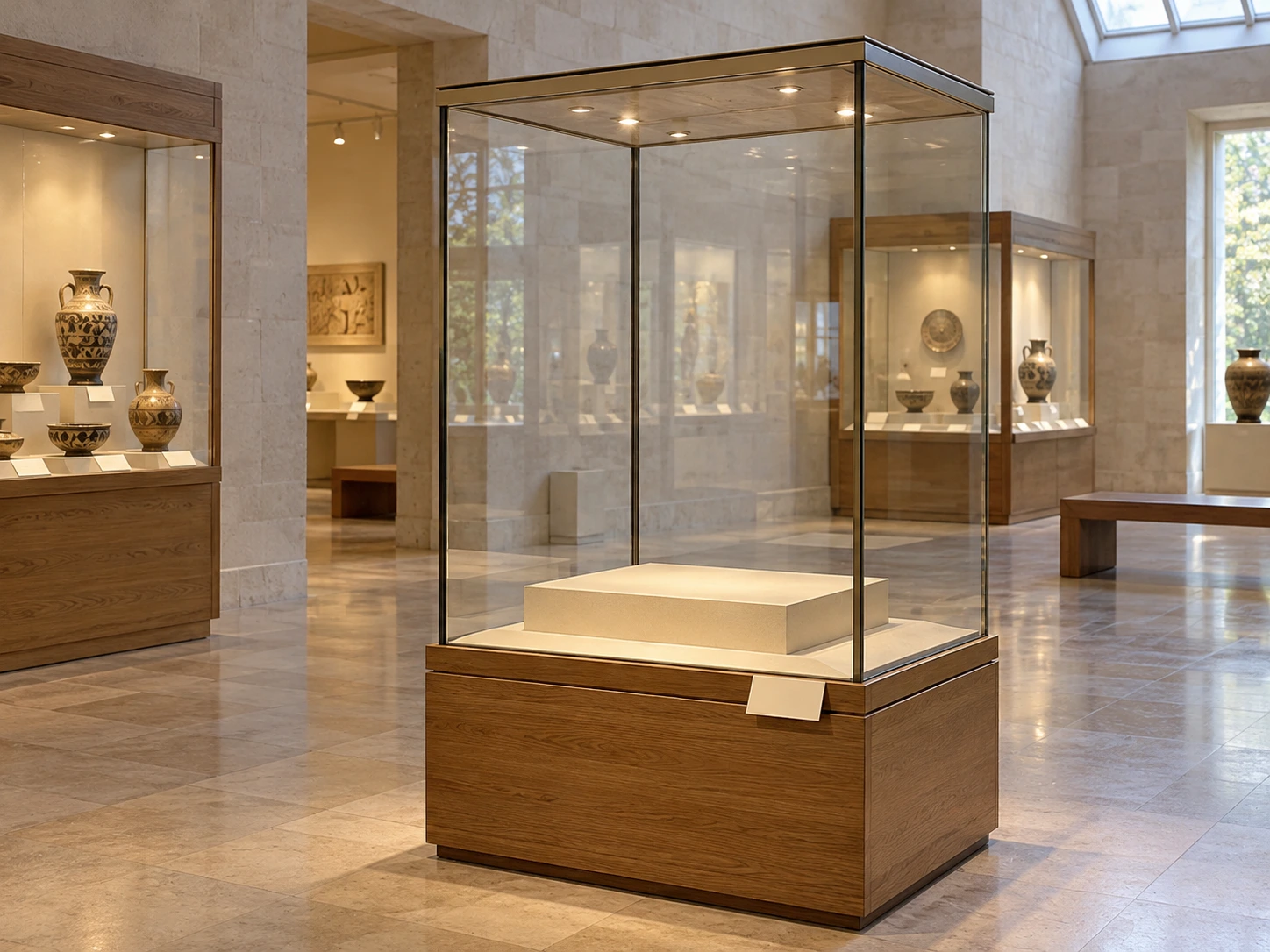
3. Place Porcelain in a Display Case
|
Input 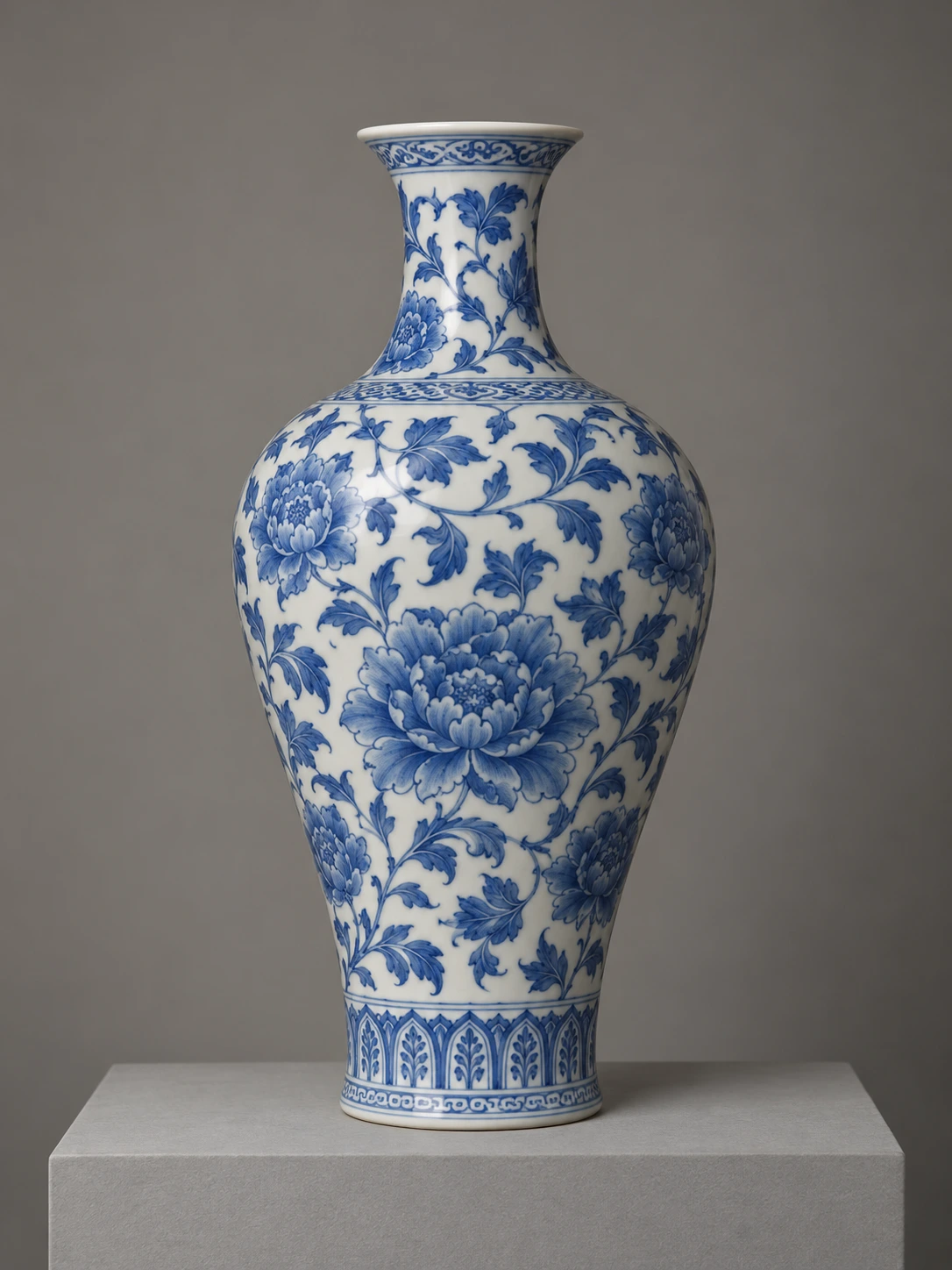
Prompt excerpt
|
Output 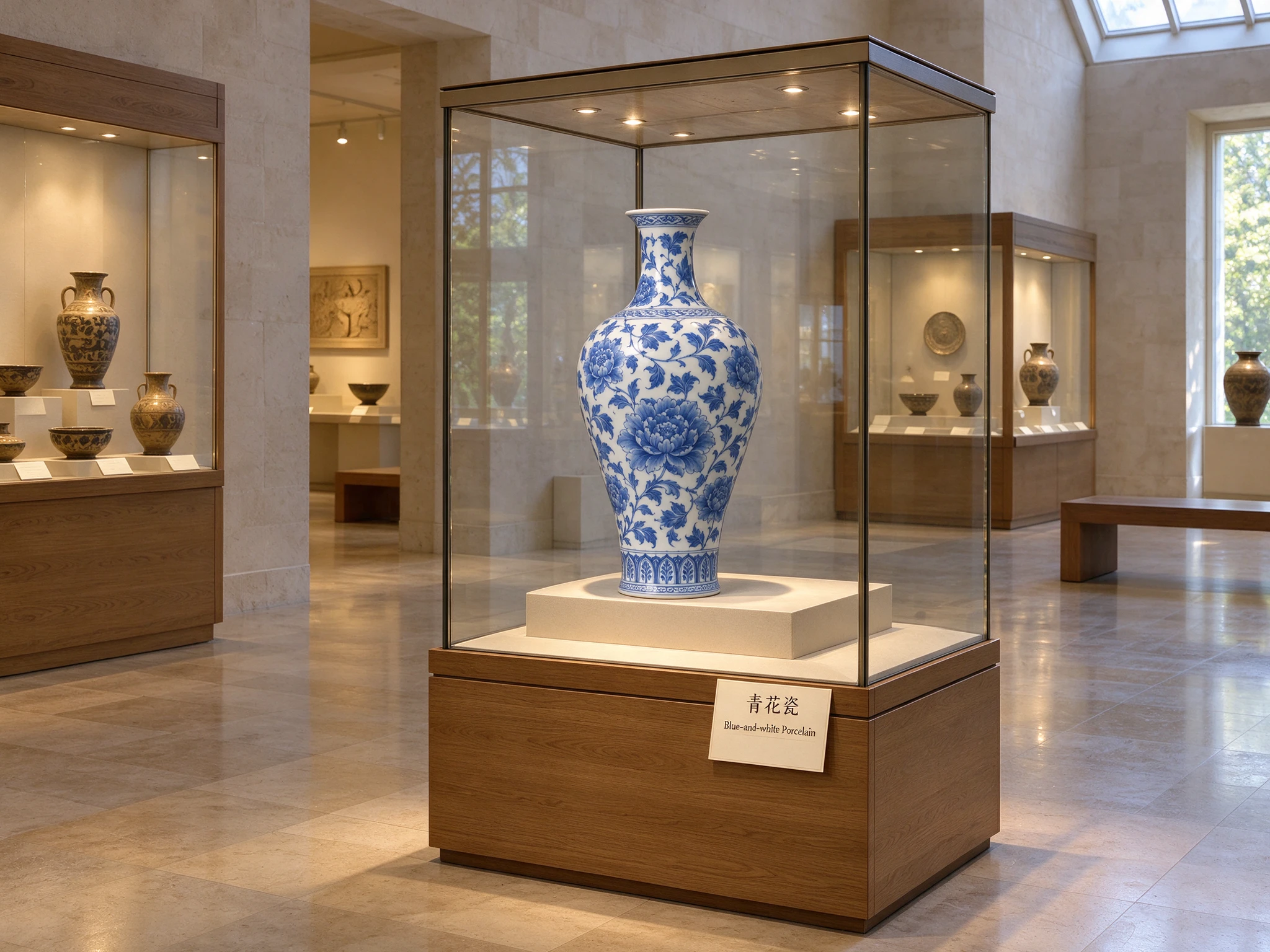
|
Input and settings: Image 1 supplies the vase and image 2 the empty display case. Select 4:3 and 2K.
What to inspect: The output places the porcelain vase in the center of the glass case, with a wooden cabinet, warm gallery lighting, and the label “青花瓷 / Blue-and-white Porcelain”. Compare the vase silhouette and cobalt patterns with the reference, then inspect its scale, position, and reflections inside the case.
Prompt approach: Specify the vase silhouette, cobalt patterns, glaze, and cabinet structure to preserve, then define placement, proportions, and reflections. Adapt this structure to your own objects and environments for product displays and exhibition concepts.
Seedream 5.0 Flash Multi-Reference Editing: Assign a Role to Each Image
Step 1: Prepare and Order Your References
Start with the subject and target scene, then add detail or style references as your brief requires. Poyo editing supports 1–10 references, and the prompt can assign each image a specific role:
| Reference role | What it supplies | How to describe it |
|---|---|---|
| Subject | Character face, product silhouette, or object patterns | “Image 1 supplies the character and clothing” or “Image 1 supplies the vase” |
| Scene | Background structure, viewpoint, placement, and lighting | “Image 2 supplies the station” or “Image 2 supplies the display case” |
| Detail | Materials, textures, markings, or clothing details | Identify the specific details to preserve from additional images |
| Style | Color palette, photographic style, or illustration strokes | Identify the style reference and the visual traits to adopt |
Keep the upload order aligned with the image numbers in your prompt. In the API, the first entry in image_urls is image 1 and the second is image 2. You can retain the same order in later edits as well.
Step 2: Describe the Reference Relationships and Final Scene
Use “reference roles + final scene + features to preserve + environment matching + text layout.” For the display-case example, adapt this prompt template to your own object and scene:
Place the blue-and-white porcelain vase from image 1 at the center of the glass display case in image 2. Preserve the vase silhouette, cobalt patterns, and glaze, along with the museum architecture and wooden cabinet. Match the vase’s scale, perspective, warm lighting, and contact shadow to the case. Add a label in front of the vase with two centered lines: “青花瓷” and “Blue-and-white Porcelain”.
For portrait scenes, use the same structure: identify the character and background sources, then specify placement, pose, clothing, framing, and lighting. For text tasks, provide copy line by line and describe the subject and position associated with each text block.
Step 3: Refine One Objective in the Next Round
After choosing a candidate, use it as the next round’s reference and adjust subject placement, background, or text layout in turn. Describe this round’s changes and the features to preserve, then inspect the face, product patterns, perspective, and shadows. Record the prompt and settings with each image to compare versions.
Seedream 5.0 Flash Pricing and Creative Budgets
These Poyo prices were updated on October 8, 2026. All three resolution tiers share the same price per image:
| Workflow | Model ID | Resolution | Price per image |
|---|---|---|---|
| Text to image | seedream-5.0-flash |
1K, 1.5K, 2K | 4 credits / $0.02 |
| Image editing | seedream-5.0-flash-edit |
1K, 1.5K, 2K | 4 credits / $0.02 |
By generated image count, 100 images cost 400 credits ($2) and 1,000 images cost 4,000 credits ($20). For example, generate five candidates for each of 20 concepts, then edit one selected image per concept once. That produces 120 images with a budget of 480 credits ($2.40).
Each request produces one image. Developers can organize multiple requests into a batch workflow and track each output by task ID. Choose resolution by delivery size: 1K for previews, 1.5K for medium-sized assets, and 2K for higher-resolution delivery. See the model page for current pricing.
How to Use Seedream 5.0 Flash in the Poyo Playground
- Open the Seedream 5.0 Flash model page.
- Select text-to-image generation or image editing.
- Describe the subject, composition, style, lighting, and exact copy.
- For editing, upload 1–10 references and explain each image’s role.
- Set the aspect ratio, 1K / 1.5K / 2K resolution, and desired output format.
- Generate, then inspect the text, object details, and character features, then refine the prompt and download your selection.
Keep the subject fixed and adjust the background, colors, and framing in sequence to create a clear record of your iterations. Compare the visual results, how closely each image meets the brief, and the cost per round when choosing the final direction.
Seedream 5.0 Flash API Integration
The following examples demonstrate the request structure, using simplified prompts based on the ingredient illustration and display-case editing tasks.
Submit a Text-to-Image Request
Create a Poyo API key, then call the unified submission endpoint:
curl --request POST \
  --url https://api.poyo.ai/api/generate/submit \
  --header 'Authorization: Bearer YOUR_API_KEY' \
  --header 'Content-Type: application/json' \
  --data '{
    "model": "seedream-5.0-flash",
    "input": {
      "prompt": "Create a watercolor ingredient card on warm ivory paper. Use two columns: tomato on the left and basil on the right. At the top write 食材笔记 and Ingredient Notes. Under the tomato write 番茄, Tomato, トマト. Under the basil write 罗勒, Basil, バジル. Use crisp readable lettering, generous spacing and balanced margins.",
      "size": "4:3",
      "resolution": "2K",
      "output_format": "png",
      "enable_safety_checker": true
    }
  }'
After a successful submission, read the task ID from data.task_id in the response.
Submit a Multi-Reference Edit
Use seedream-5.0-flash-edit for editing, with references supplied in order in image_urls. This request body places the vase into the display case:
{
  "model": "seedream-5.0-flash-edit",
  "input": {
    "prompt": "Place the blue-and-white porcelain vase from image 1 at the center of the glass vitrine in image 2. Preserve the vase silhouette, cobalt floral patterns and glossy glaze, and preserve the museum architecture. Match the warm lighting, perspective, scale and contact shadow. Add an exhibit card with two centered lines: 青花瓷 and Blue-and-white Porcelain.",
    "image_urls": [
      "https://storage.poyo.ai/models/seedream-5-0-flash/examples/museum-input-1.webp",
      "https://storage.poyo.ai/models/seedream-5-0-flash/examples/museum-input-2.webp"
    ],
    "size": "4:3",
    "resolution": "2K",
    "output_format": "png",
    "enable_safety_checker": true
  }
}
size sets aspect ratio and defaults to 1:1. resolution sets resolution and defaults to 1K. Choose jpeg or png with output_format and configure safety checking with enable_safety_checker. Prompts accept 1–5000 characters.
Poll for Results or Receive a Callback
Query status with the task ID returned by the submission:
curl --request GET \
  --url https://api.poyo.ai/api/generate/status/YOUR_TASK_ID \
  --header 'Authorization: Bearer YOUR_API_KEY'
Poll every 2–5 seconds. When data.status becomes finished, read each image’s file_url from data.files and save it. You can also add a top-level callback_url to the submission request to receive a notification when the task completes. The task status documentation covers the full flow.
Frequently Asked Questions
What is Seedream 5.0 Flash?
Seedream 5.0 Flash is ByteDance’s cost-efficient image generation and editing model in the Seedream 5.0 family. It suits concept iteration, multilingual visuals, and multi-reference editing. On Poyo, it offers 1K, 1.5K, and 2K output at 4 credits ($0.02) per image.
Which tasks suit Flash, Lite, and Pro?
Use Flash for repeated concept exploration and multi-reference edits at 1K–2K. Lite supports 2K, 3K, and custom dimensions for briefs with specific output sizes. Pro focuses on complex prompts, dense layouts, multilingual typography, and precise regional edits. Compare candidates using the same copy and references when choosing a model for your brief.
How much do generation and editing cost on Poyo?
Text-to-image generation and reference-based editing both cost 4 credits ($0.02) per image, across 1K, 1.5K, and 2K. Reference editing accepts up to 10 images at that per-output price. For example, 100 generated images cost 400 credits ($2); include candidate images and later edits in the total.
How should I choose 1K, 1.5K, or 2K, and how does the price differ?
All three resolutions cost 4 credits ($0.02) per image. Use 1K for previews and composition exploration, 1.5K for medium-sized assets, and 2K for larger display sizes or detail review. Choose by the final placement and viewing size; the API defaults to 1K resolution.
How many references can I use, and how should I order them?
Poyo’s playground and editing API support up to 10 reference images. Upload them in the order used in your prompt and assign a role to each: for example, image 1 supplies the person or product and image 2 supplies the scene. Describe the features to preserve, the subject’s placement, and the intended lighting.
How can I place a person or product naturally into a new scene?
Provide a clear subject reference and a scene reference, then identify their roles in the prompt. Specify placement, scale, camera angle, light direction, contact shadows, and relevant reflections. The railway and museum examples above show this structure; inspect the subject’s features and its relationship to the surroundings before refining the next round.
How should I write prompts for multilingual text and complex scenes?
Begin with the subject, scene, composition, and lighting, then describe each element and its location. Put exact in-image text in quotation marks and assign its language, position, hierarchy, and font style. For multiple references, state what each contributes. After generation, check the text line by line and review the relationships between objects.
How can I plan repeated drafts and batch creative work with Flash?
Group variations by concept and keep shared subject, style, and reference instructions consistent. Change one creative variable per round, such as framing, background, or lighting, and save the prompt alongside the chosen result. Budget by total outputs: three candidates for each of 10 concepts produce 30 images and cost 120 credits ($0.60); further edits add to that total. The API workflow above covers individual submissions and result tracking.
How can I try Seedream 5.0 Flash on Poyo and download the result?
Open the Seedream 5.0 Flash model page, choose generation or editing, and enter your prompt. For editing, upload references in the stated order. Select the aspect ratio and resolution, generate, then inspect and download the completed image; use it as a reference for a further editing round.
Start on the Seedream 5.0 Flash model page, choose an example, replace the subject or references, and refine your visual concept across rounds.